
First, open the photo you would like to add the overlay to.
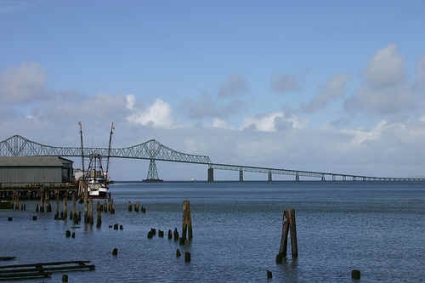
Next, create a new layer by pressing the (Ctrl+Shift+Alt+N) at the same time.
Select your Brush Tool and select the size of 200 which appears blurry.
Set your Mode to Dissolve.
Set your Opacity to 75% and your Flow to 100% for this example.
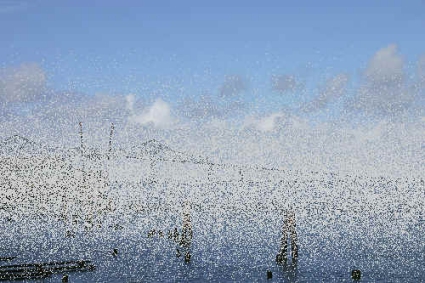
Set your foreground color to #C9CBCC, which is a Grey color and draw the tiny dots every inch or so as seen below by clicking.
Now, go to the top menus and select Filter > Blur > Gaussian Blur and set the radius amount to 8.
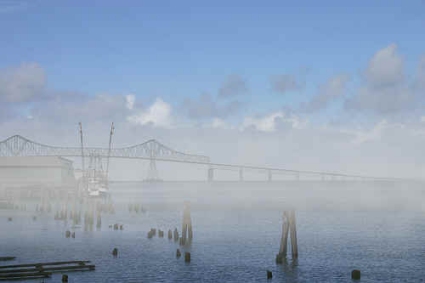
Now you have a misty overlay to your Astoria, Oregon photo.
