Create two lines using line tool.
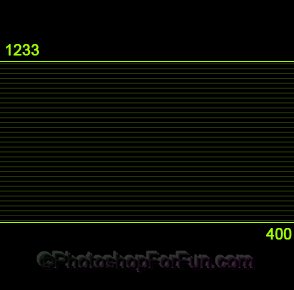
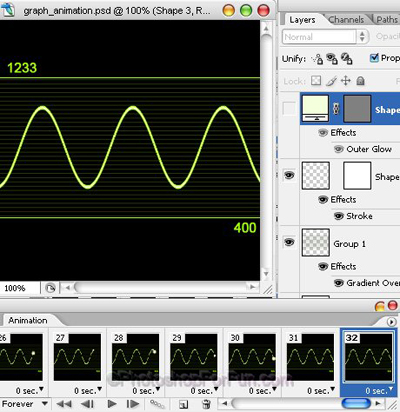
Create more lines using line shape tool.Type some numbers as shown.
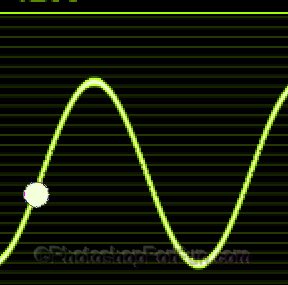
Create a wave shape using pen tool or create some 'zigzag' line using brush tool.
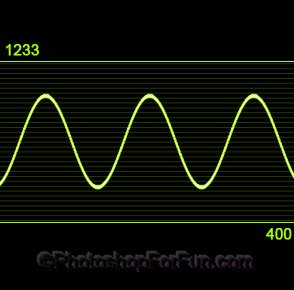
Create a rectangular selection using rectangular marquee tool. Press Shift+Ctrl+I to invert selection.
Click on the layer mask thumbnail from the bottom of the layer palette.
Unlink the mask by clicking over the chain icon between layer content and layer mask thumbnail from the layer.
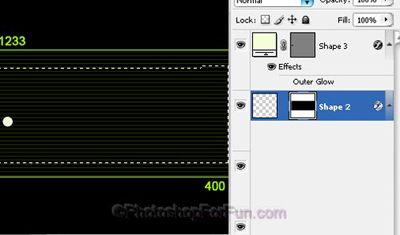
Create a circle using elliptical shape tool.
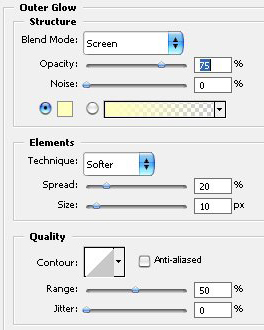
Double click the layer to open layer style window. Apply settings as shown.
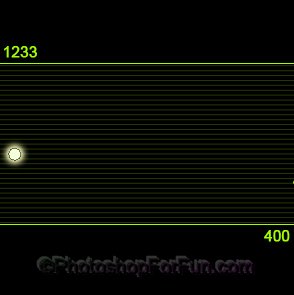
Open animation window. For the first frame hide the glow circle layer.
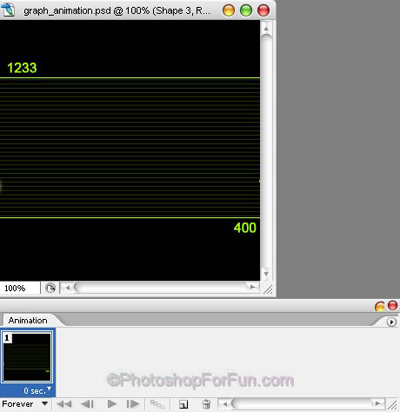
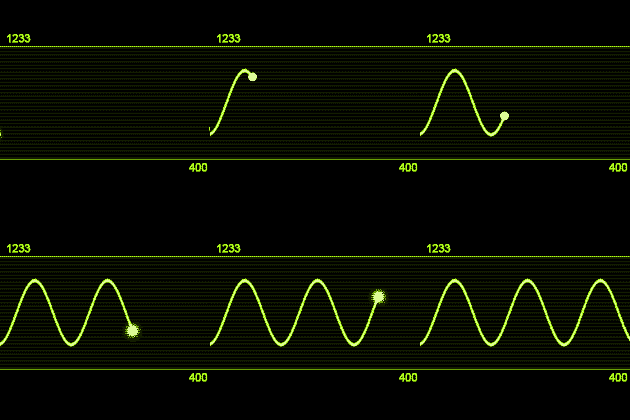
Duplicate frame. Move the mask a few pixels to right. Unhide the glow circle and move it over the top edge of the line shape.
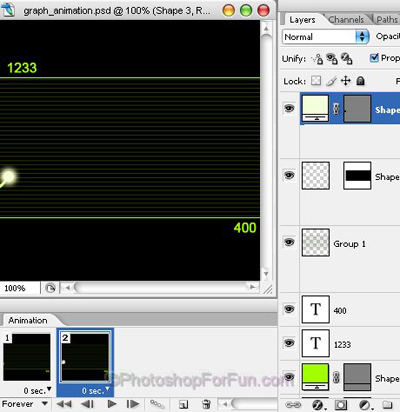
Duplicate frame. Move the mask a few pixels to right. Move the glow circle and move it over the top edge of the line shape.
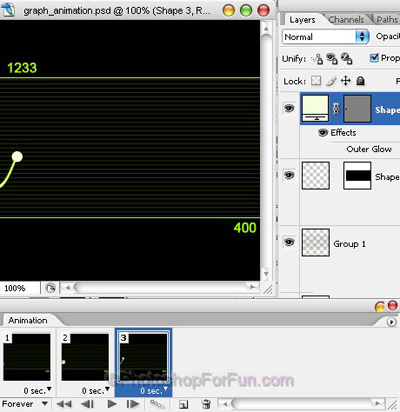
Keep duplicating mask. Move the mask with each duplicate frame. Similarly move the glow circle layer.
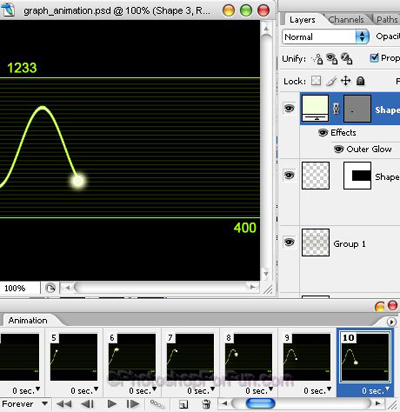
Select each alternative frame and hide the glow from circle layer from the layer palette.
Press Ctrl+Alt+Shift+S to save an optimized animated GIF.