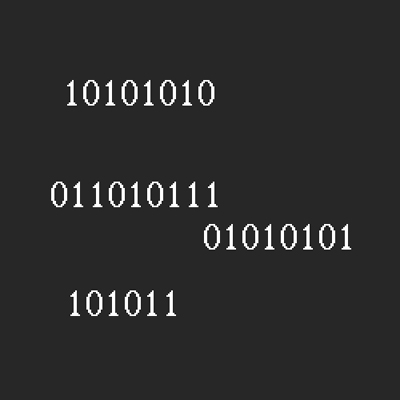
1. Open up a new canvas like the one below. My canvas is 500 x 500PX. Get out your Text tool (T) and type on the canvas with a standard font. Do this a couple of times.
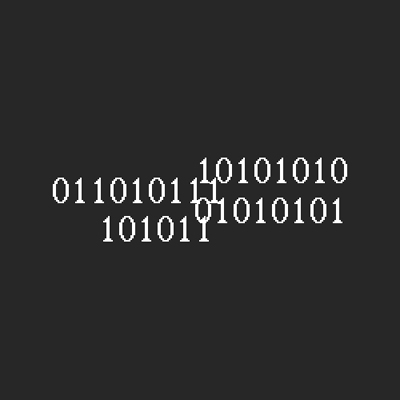
2. Alternate the text layers to the position you want, quite close together :
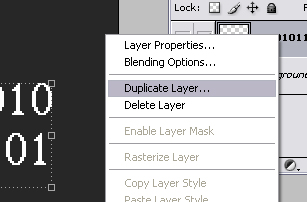
3. Rasterize all the text layers and then from the top layer of the palette, press CTRL + E and then stop just before the Background layer, in other words don't merge onto the Background layer. Once you've done that, Duplicate the layer.
4. Go to Filter>Blur>Radial Blur and input these settings :
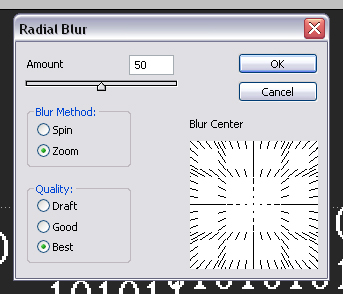
5. After you have done that, add the Outer Glow layer style to the layer you didn't Blur.
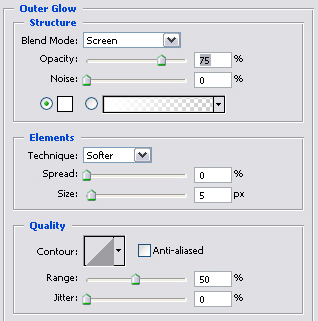
6. The effect is now complete!
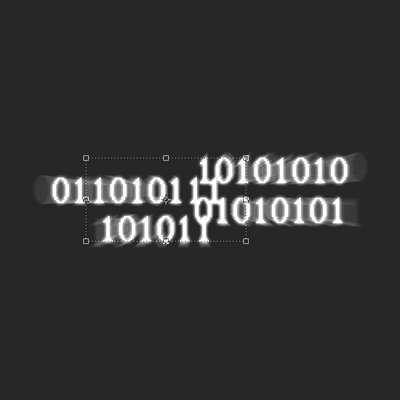
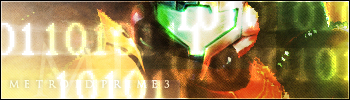
7. Now you can add the stamp to signature or other graphics :