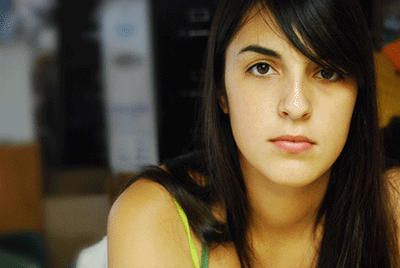
Today, I am going to do a photo retouch tutorial to create clean and smooth skin. I think this is useful for girls who wish to have their own photo album. Again, I try to make my tutorial here simple and easy to learn but, sure, efficient. Ok, let's start.
1. Choose a photo for this tutorial and I use this, you can simply search from Google image or stock xchang or you also can use mine. Open the image in PS. Rename the image layer to image.
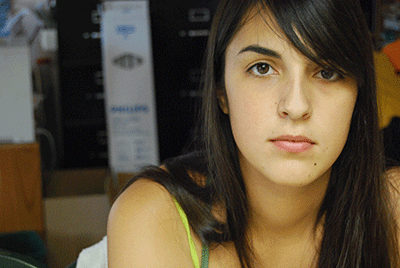
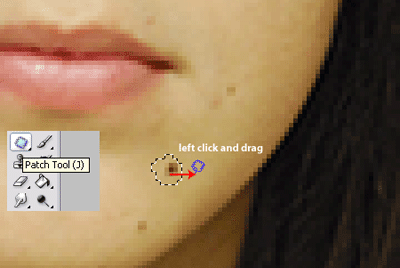
2. Grab the Patch Tool and make a selection around the unwanted area. Left click and drag to the area outside the selection.
3. You will get this. If you fail to get this result, try and error will always help.
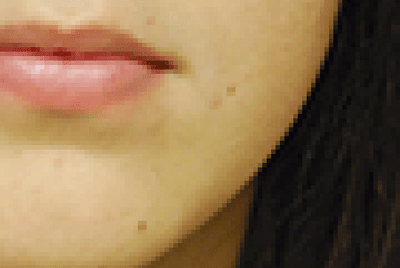
4. After that, repeat the step 2 to clean up all unwanted area and object on the face. Finally, you will get this.
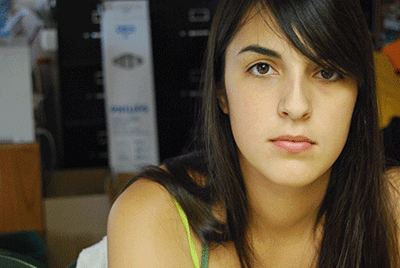
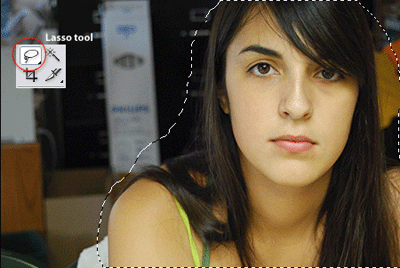
5. To make thing better, we will retouch the skin for the girl. Ctrl + J to duplicate the layer and name it as image_copy. Select image_copy (upper layer), grab the Lasso Tool and make a selection as below. Ctrl + Shift + I (invert) and go to Selection > Feather > 20px. Press Del.
6. Select image (bottom layer), go to Filter > Blur > Gaussian Blur > 4px.
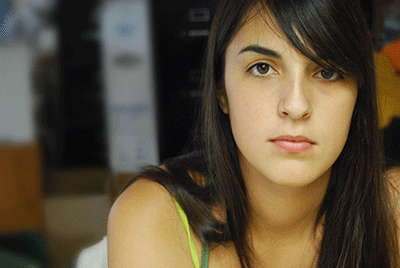
7. Select image_copy (upper layer), Ctrl + J to duplicate. Change the blend mode to Soft Light and set the opacity to 60%. go to Filter > Blur > Gaussian Blur > 2px. Yup, you're done! Hope you enjoy this!