


Today we will have a photo edit tutorial and sure, it is simple and easy to follow as usual. I think you may see this in many music album CD cover and some artist poster or wallpaper. Ok, let's start then. This is the photo that I found in Google image.
1. Open the image in PS.

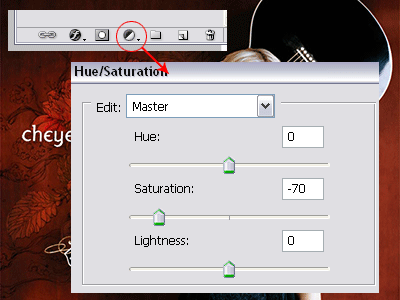
2. Go to the bottom of the layers palette and click on the Hue/Saturation option. Set the setting as below:
3. After that, you may get this:

4. Create a new layer and set it to Soft Light Blend mode. Choose a 48px hard brush and paint the new layer as shown below. You can choose the colors you like.

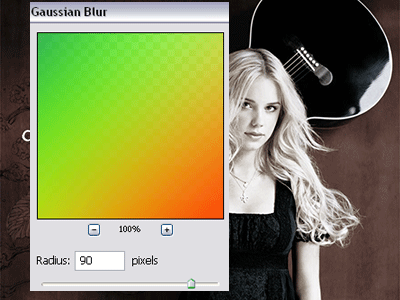
5. Go to Filter > Blur > Gaussian Blur > 90 pixels.
6. Yep, you're done! It's easy and now you can edit your photo yourself easily. Thanks!

Tips:
- The lower the saturation will decrease the color more.
- So, the lower the saturation will increase the visibility of the painted color.
