Start creating a New Document. Size: 320 X 180 px. Color Background: AA732A. Then type some text on it. Font: Comic Sans MS, Bold, Size: 120, AA: Smooth, Color: C2C2C2.

Double click on the text layer to open the Layer Styles. Use Bevel & Emboss and Stroke and set these settings:
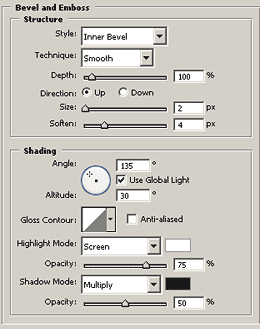
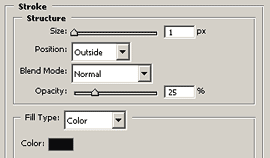
Now you have something like this:

Create a New Layer, double click on it to open the Layer Styles. Add inner Glow and Bevel and Emboss:
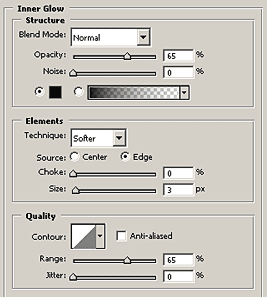
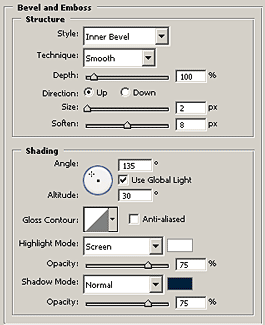
Next Grab Brush Tool and use a 6 - 10 px Hard Airbrush to draw the snow. Make sure you have white foreground color. There you have, the Snow Text Effect. I also added a little shadow.