Text background
Make a New Image, RGB Mode, white background. Here: 400*100 px.
Take Text Tool and write any text. Font: Anklepants 100 pt. grey color (AAAAAA), aa smooth.

Resterize Type
First modify the text to be able to work on it: Layer > Rasterize > Type.
After that make it a selection by pressing Ctrl + click on text layer or by: Selection> Load Selection - Channel = METAL Transparency
Save it: Selection > Save Selection - Channel = New - Name = METAL

Working with Channels
Go to Channels Palette and there you see a channel called Metal, click on it to activate.
Now apply Gaussian Blur, but be carefully dont lose the selection: Filter > Blur > Gaussian Blur
Apply the filter 4 times with the values 6, 4, 2 and 1 px the last one (fourth).

Lighting Effects
Now apply Lighting Effects: Filter > Render > Lighting Effects.
Use the parameters of the next image.
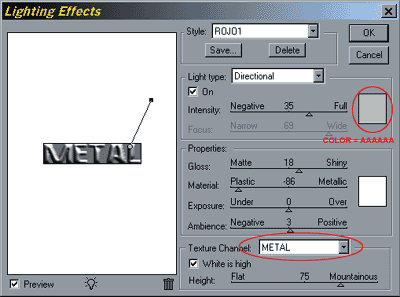

Give it a bit deep and realism. Add a shadow and Bissell: Layer > Layer Style > Drop Shadow - Layer > Layer Style > Bevel and Emboss
The Result
Use the default parameters. And this is the result.

This is the result with a textured background.