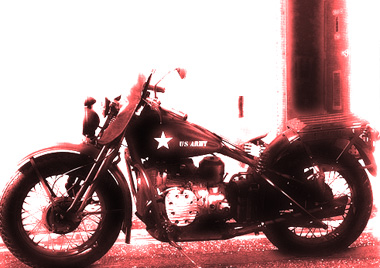
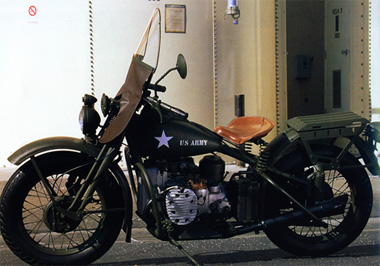
Start by opening an image, you want to work out.
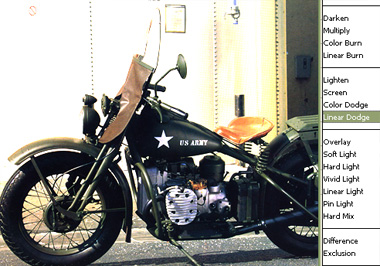
Duplicate layer and change layer mode to "Linear Dodge".
1. Creating painting look from an image
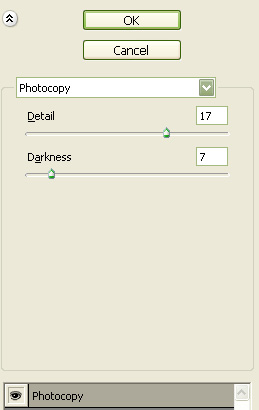
Duplicate layer. From "Filter" menu select "Sketch>>Photocopy". Apply settings as shown.
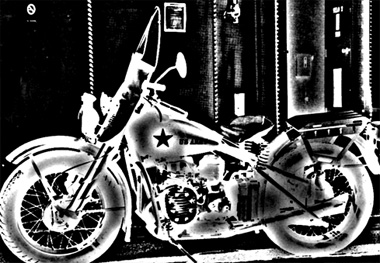
Click add layer mask button from the bottom of the layer palette. Apply a black to white gradient in linear mode to create a smooth blend.
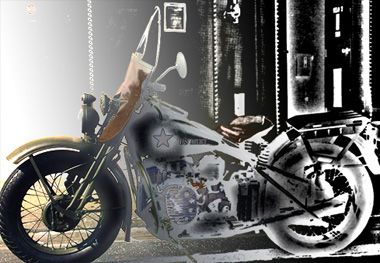
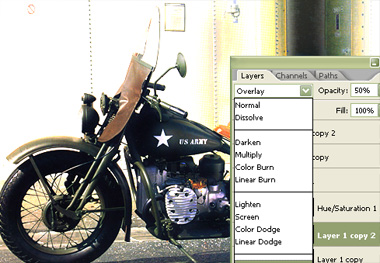
Change the layer mode to "Overlay" and opacity to 50%.
2. Applying monotone
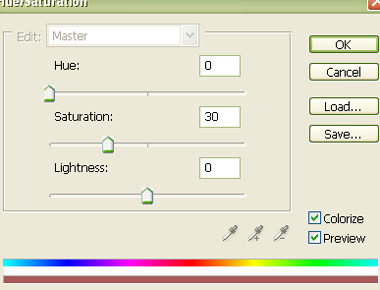
Select and merge all the layers. Press Ctrl+U to open hue / saturation window. Apply settings as shown.
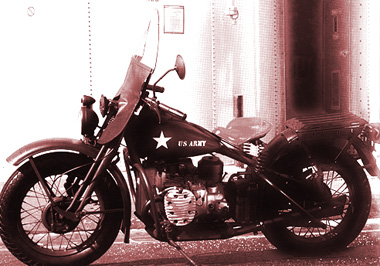
3. The finishing touch
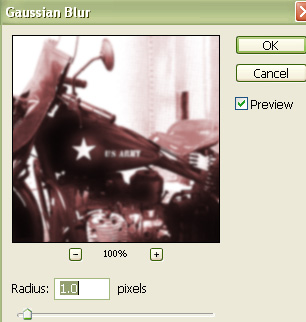
Duplicate the layer. From "Filter" menu select "Blur>>Gaussian Blur ". Apply settings as shown.
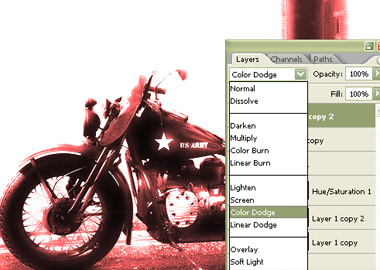
Change the layer mode to "Color Dodge".