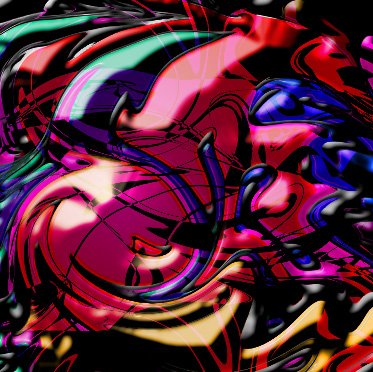
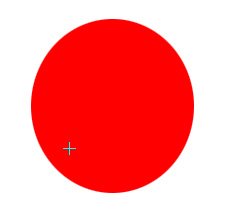
Start by creating an ellipse using elliptical shape tool.
Create more shapes with different colors using custom shape tool.

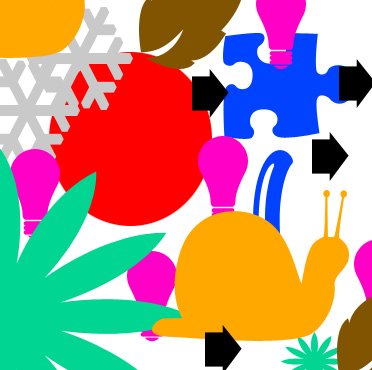
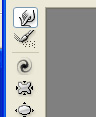
Select and merge all the shape layers. From filter menu select liquify. Select forward warp tool.
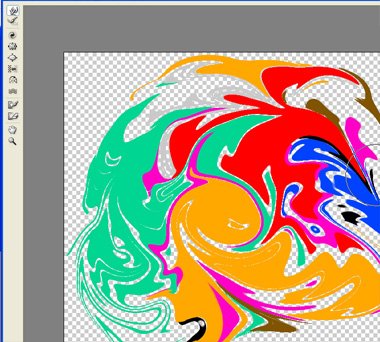
Distort the shape as shown.
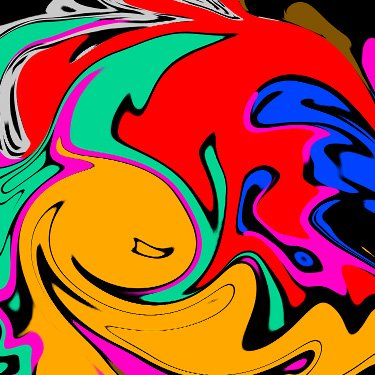
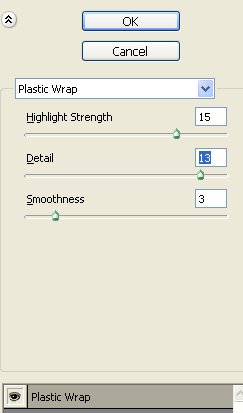
From filter menu select artistic>>plastic warp. Apply settings as shown.
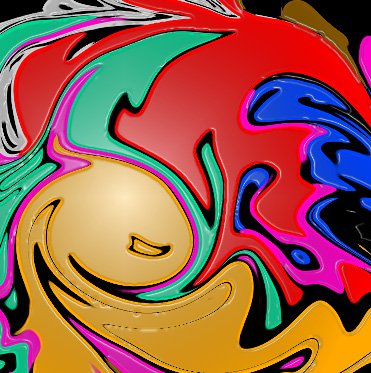
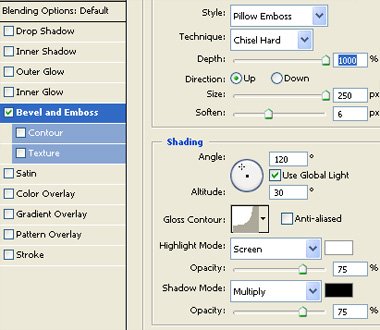
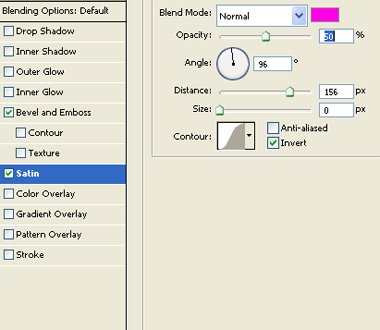
Duplicate the layer and hide it. Double click the layer to open layer style window. Apply layer style with the settings shown.
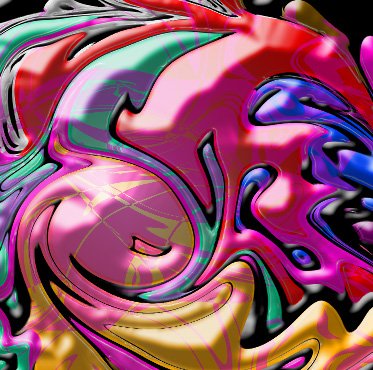
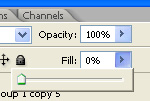
Reduce the fill value to 0%.
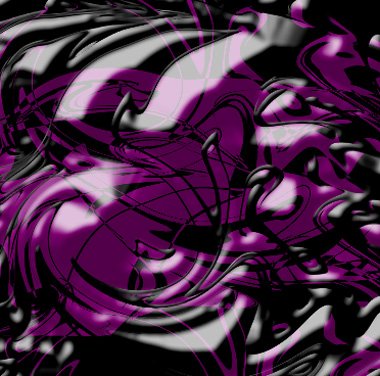
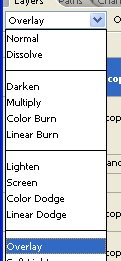
Unhide the duplicate layer. Change the layer mode to overlay.