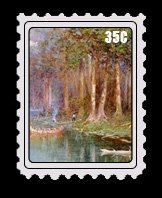
Start by creating a new file. Using rectangular marquee tool create a rectangle in new layer.
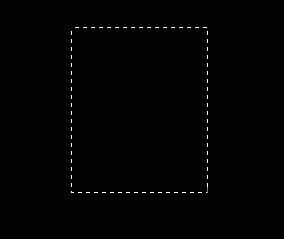
Press Q to enable quick masking.
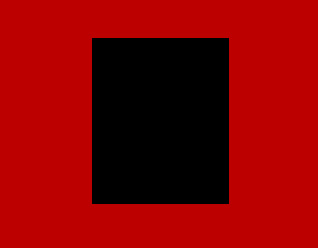
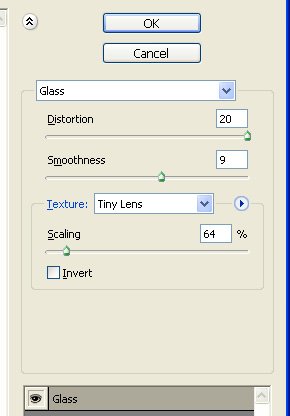
From filter menu select distort>>glass.
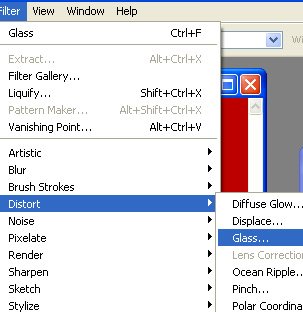
Apply settings as shown.
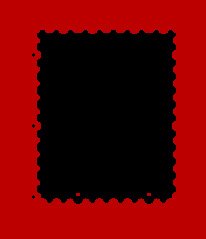
Press Q again to disable quick mask.
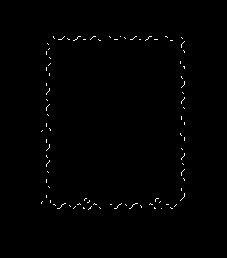
Fill the selection with a light color.
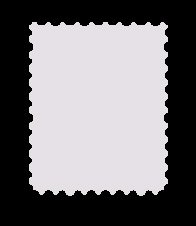
Using rectangular shape tool create a rectangle.
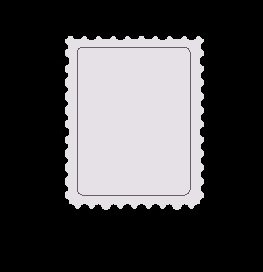
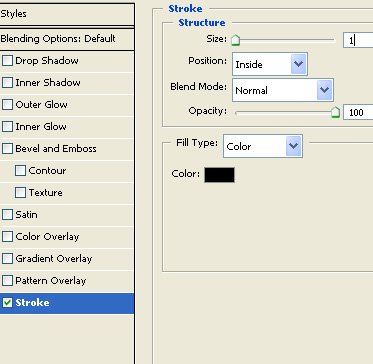
Double click the layer to open layer style window and enable stroke. Apply settings as shown.
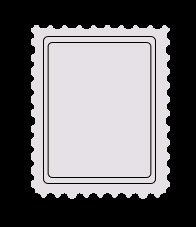
Duplicate the layer and scale it down.
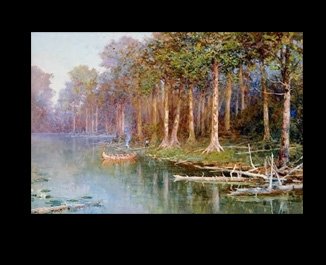
Open the image you want to place inside the postage stamp.
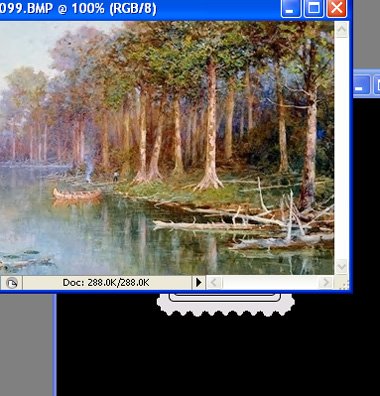
Drag the image to the main file.
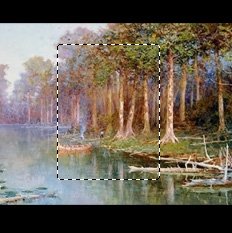
Ctrl select the inner rectangle layer to get the selection.
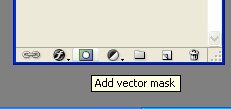
Select the image layer and then add layer mask. (Third icon form the bottom of the layer palette.)
Adjust the stamp layer.
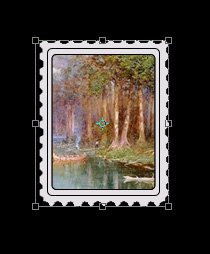
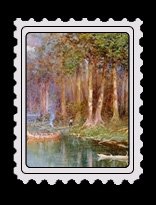
Add some text to complete the stamp.