

In this tutorial, you will learn to create a YouTube like play button.
Draw this shape using rounded rectangle tool (the black color shape). Before drawing the shape, set the radius to 5 pixels.

Apply these layer styles in it :
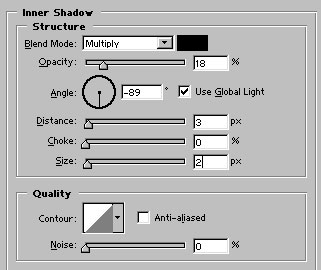
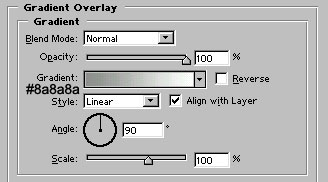
You will get something like this after applying above layer styles :

Now, with the help of pen tool, draw the play button :

Apply gradient overlay as shown :
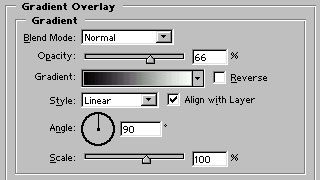

Now, select the line tool and set the radius to 1 pixel. I have hidden the original play button to show where to draw lines. Draw two black lines and one light gray color line as shown :
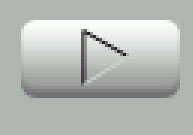
Our YouTube style play button is ready to rock :)

