Start by drawing this shape with the help of Rounded Rectangle Tool. Set the radius to 10 px.

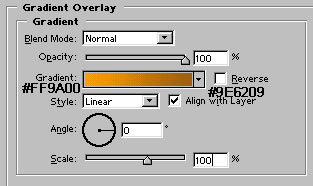
Now, apply Gradient Overlay as shown :
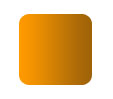
You will get something like this. If you want, you can change the color of this shape, just select two shades (lighter or darker) of similar color.
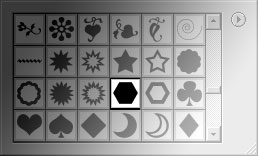
Now select Hexagon autoshape :
Draw a white color hexagon in the middle of the shape :

Select Line Tool, set the width to1 px and draw some lines as shown :


Our shutter icon is ready. The image below is having web 2.0 style reflection effect.