Her

Home Photoshop Tutorials Special Effects Simple Patchwork

Simple Patchwork

Author: Daniel Castro Author's URL: www.startphotoshop.com More by this author

Let's begin real simple, so create you Default Photoshop Document
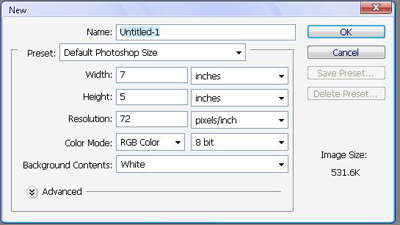
image 1

Now, Set your colors to #ff0000 as foreground, and #a90000 as background.

Double Click your Background Layer to unlock it, rename it Layer 0.

Now, use a Gradient across the Document, from top left to bottom right.

After this, you will go Filter>Render>Fibers. Use the below settings.
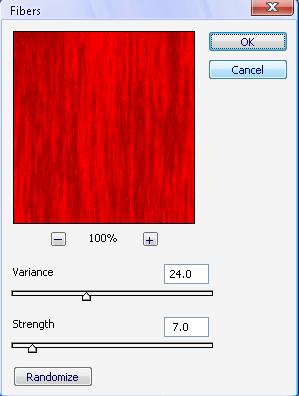
image 2

Now, in the Filter Gallery, do some Glowing Edges.

image 3

After this, you will go back to the Filter Gallery, and do some Patchwork.

image 4

Your end result should be some pretty neat tiles.
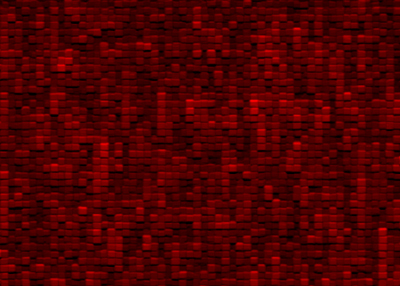
Simple Patchwork
Click to enlarge


About the Author:

I'm 16. Well, I started doing websites in 6th grade, because the students in my grade weren't exactly organized, and had trouble keeping track of what we had to do. That's when I started making websites. In my July vacations, I decided to make another website, educating new Photoshop users to the program, and that's how StartPhotoshop.com originated. I hope you find my tutorials useful, thanks!
