1. Open a new file, I made mine 450 pixels by 250 pixels and have the background as black.
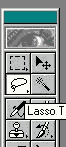
2. Using the Lasso tool draw the outline of what you want your sound wave to look like. this is what mine looks like.
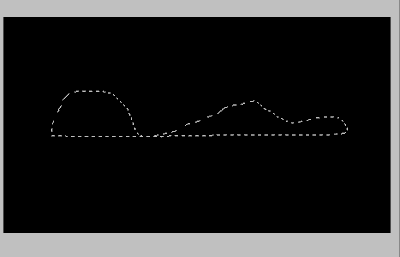
3. Now on a separate layer fill in the shape with white.
4. Now make a copy of this layer (the sound wave layer) and goto Edit > Transform > Flip vertically
Now line the layer up so that it forms a complete sound wave thing.
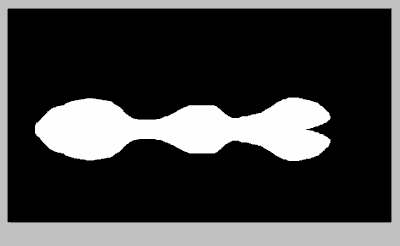
5. Now merge these 2 layers into each other. Layer > Merge Down. make sure your don't merge the background into these layers.
6. Click Edit > Transform > Rotate 90.
7. Click Filter > Stylize > Wind. A box will pop up. For my sound wave I selected wind and from the right. I did this 3 times. Then I did it 3 more times from the left.
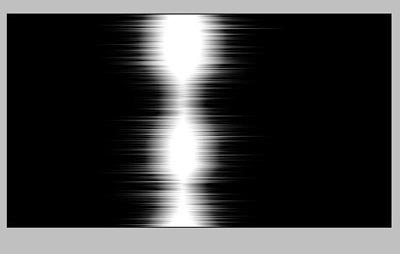
8. Were almost done. Now goto Filter> Blur> Motion Blur. Set it to 0 degrees and 30 for the distance. (it doesn't have to be 30, that's just what I used, but generally stay in between 10 - 35)
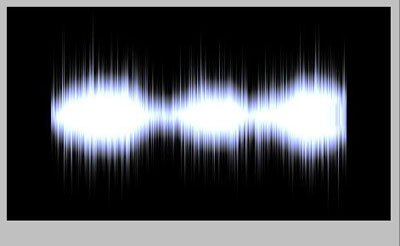
9. Now just go to Edit > Transform > Rotate 90 and there you have a very cool sound wave. I went on and make a separate layer and color dodged it and change its color so here is what i ended up with