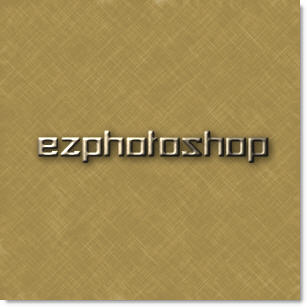
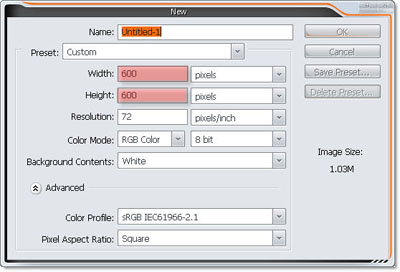
1. Make new document, size 600 x 600 px , RGB color
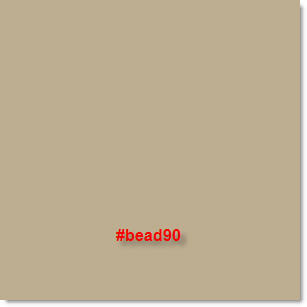
2. Create new layer, fill #bead90 color
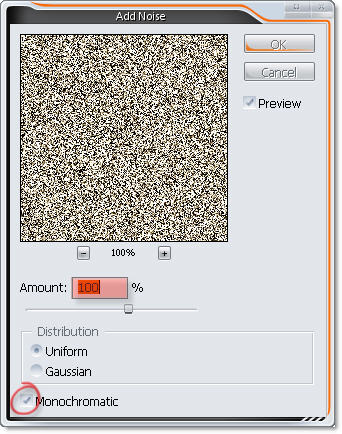
3. Filter >> Noise >> Add Noise ..
4. Filter >> Sketch >> Reticulation
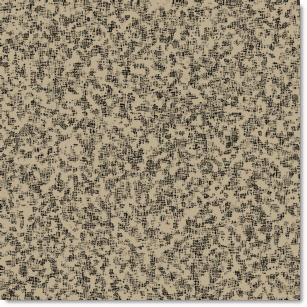
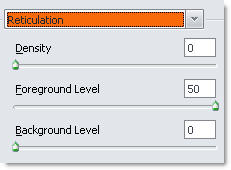
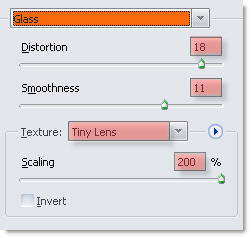
5. Go to Filter >> Distort >> Glass
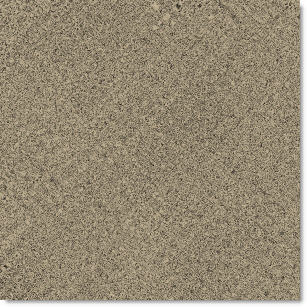
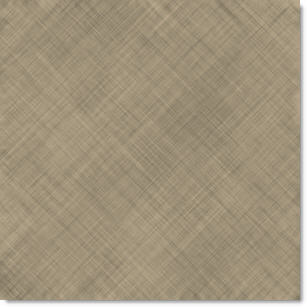
6. Filter >> Brush Stroke >> Crosshatch
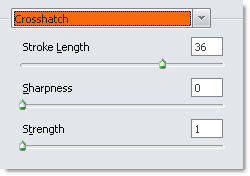
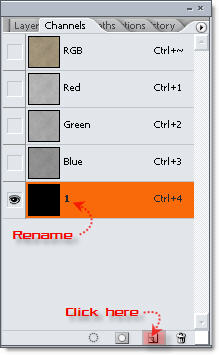
7. Go to Channel pallet, Click on new channel icon to make new channel then rename that to "1"
8. Hold all still, back to Layer pallet, use Type Tool, type your text you like, in this step, background I'll change to red color
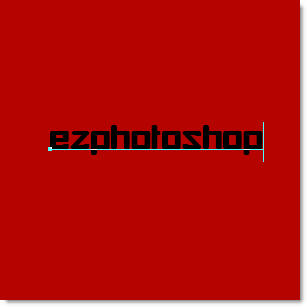
9. When you typed, hit Right Enter on Num lock keyboard
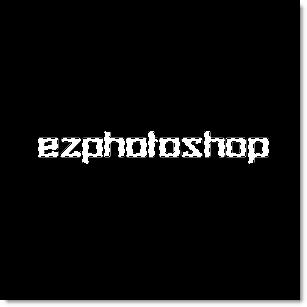
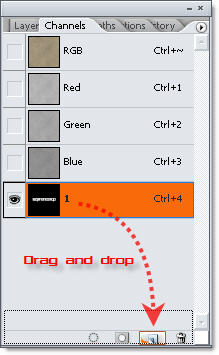
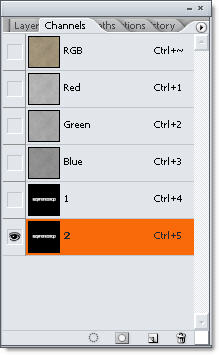
10. Now, Hit Ctrl + D to Deselect, change to Channel pallet, Drag and Drop channel 1 to new channel icon to duplicate channel, name that "2"
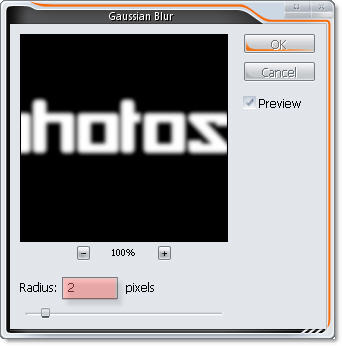
11. Hold still, go to Filter >> Blur >> Gaussian Blur
12. Now, Hold Ctrl and click in "1" channel, then Ctrl + Shift +I to Inverse Selection, then Delete
.jpg)
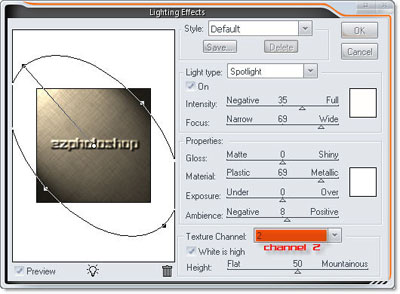
13. Go to Filter >> Render >> Lighting Effects with these parameter, In texture channel , choose channel "2"
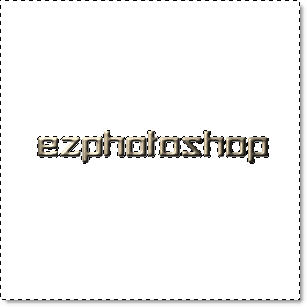
14. And now, hold Ctrl and click in channel "1", then Inverse selection ( Ctrl + Shift + I ), then delete.
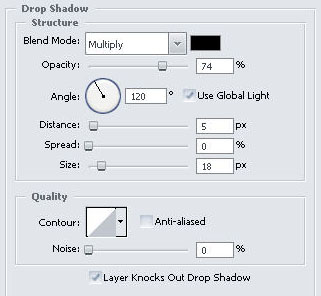
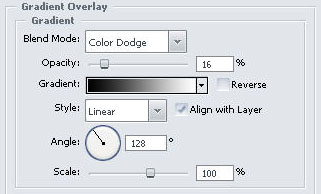
15. Back to layer pallet, add layer style for this text
16. Now, we put it on new background :)