Start by creating a new file. Select brush tool. Right click and select the brush as shown.
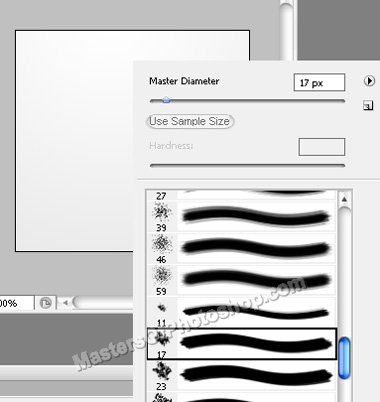
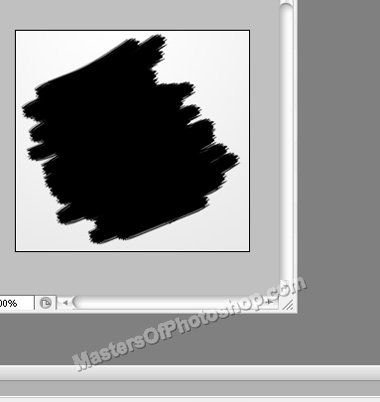
Create a new layer and apply the strokes as shown.
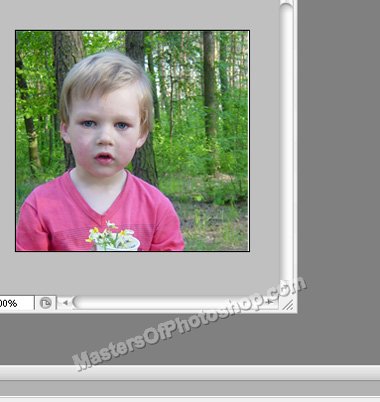
Insert an image of your choice.
Press Ctrl+Alt+G to create a clipping mask.
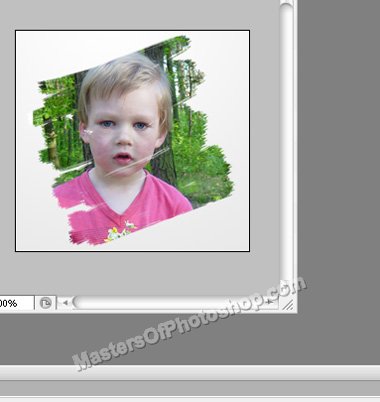
Select and merge both the layers. Duplicate the layer.
Select eraser tool with the same brush settings. Duplicate the layer and hide the previous one. Eraser the bottom stroke as shown.
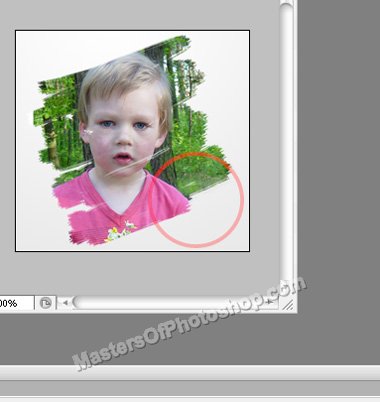
Similarly create several duplicates and remove the strokes.
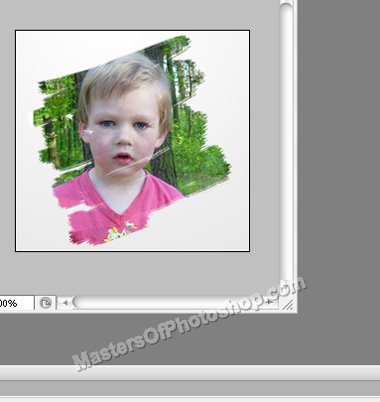
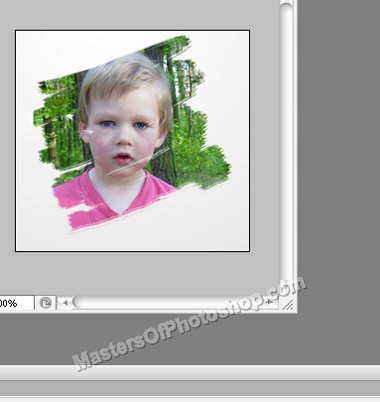
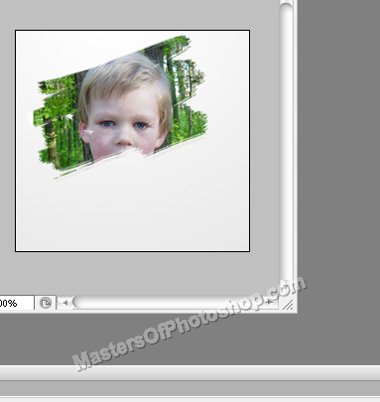
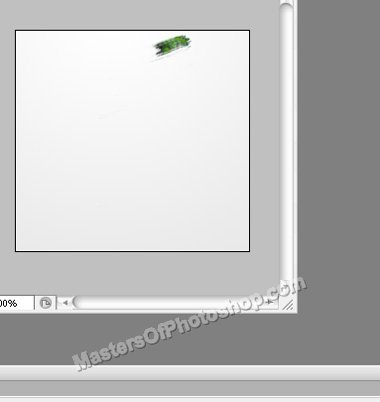
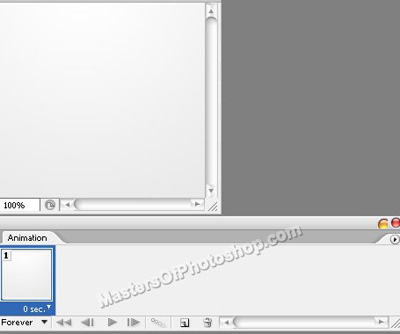
Open animation window. For the first frame. Hide all the layers.
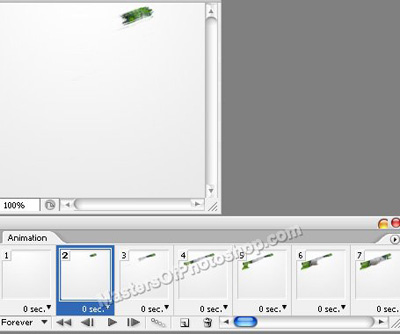
Keep duplicating the frames and unhide stroke layers as shown.
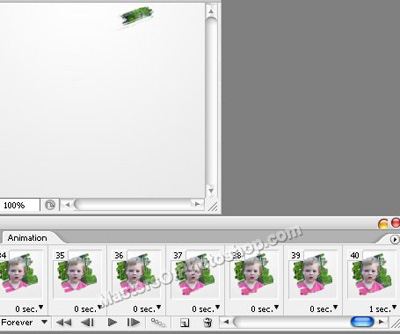
Press Ctrl+Alt+Shift+S to save an optimized animated gif.