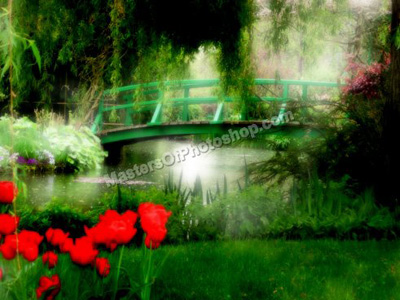
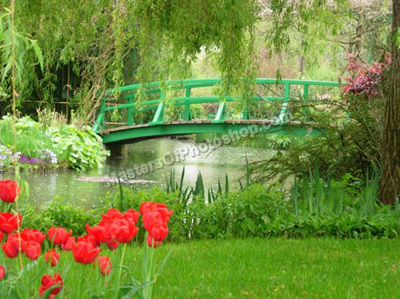
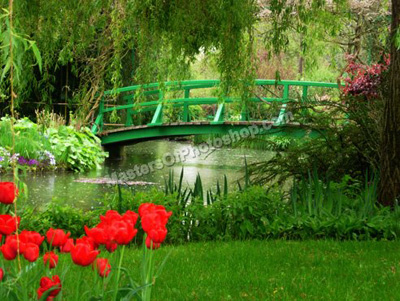
Start by opening an image of a scenery.
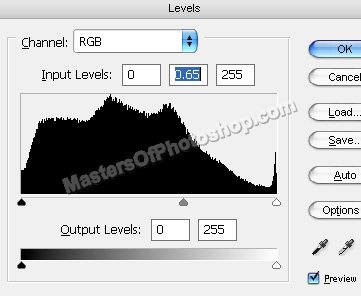
Press Ctrl+L to open level settings. Apply settings as shown.
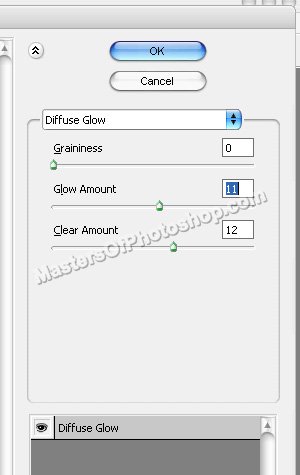
From "Filter" menu select "Distort>>Diffuse Glow ". Apply settings as shown.
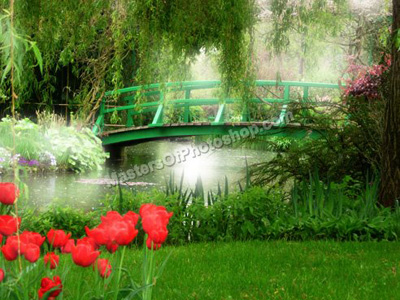
Press Q to enable quick mask. From "Filter" menu select "Render>>Difference Clouds".
Press Q again to disable quick mask.
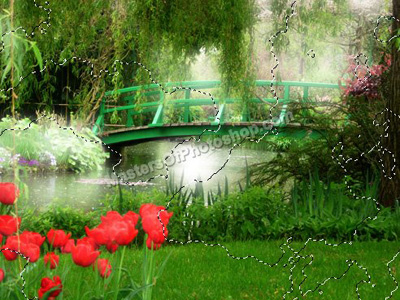
Fill the area using white color.
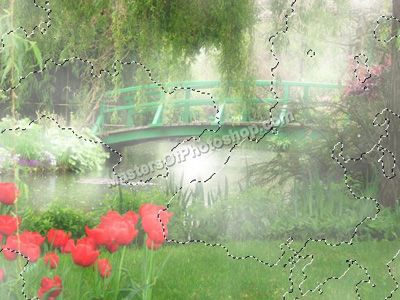
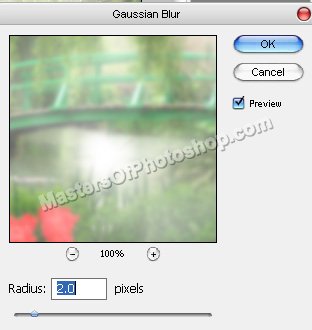
Duplicate the layer. From "Filter" menu select "Blur>>Gaussian Blur ". Apply settings as shown.
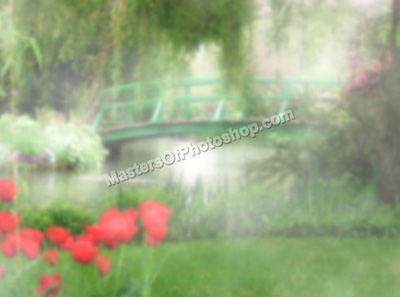
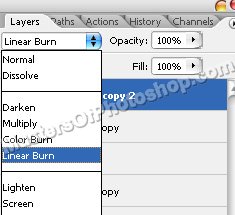
Change the layer mode to "Linear Burn ".