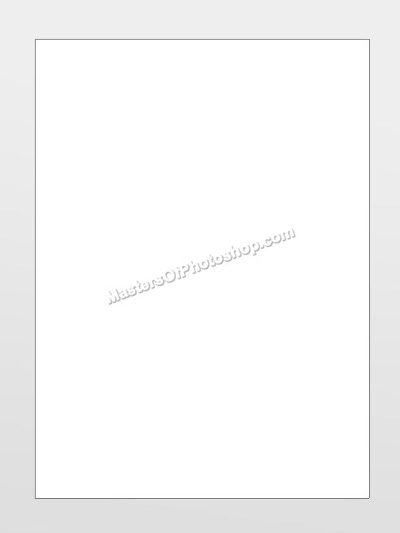
Create a rectangle using rectangular shape tool.
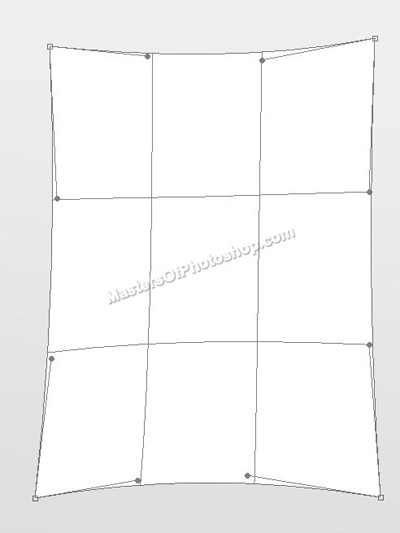
Press Ctrl+T. Right Click and select Warp. Adjust the nodes to get the shape as shown.
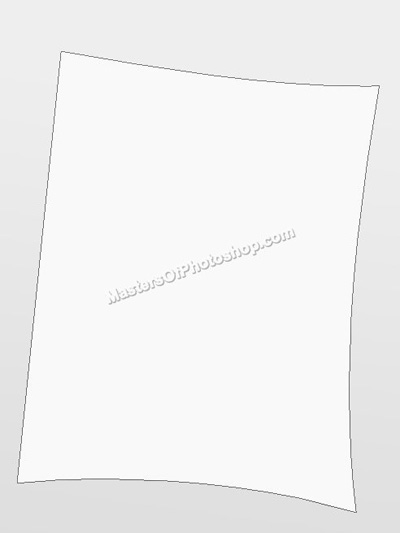
Press Ctrl+T and rotate a bit.
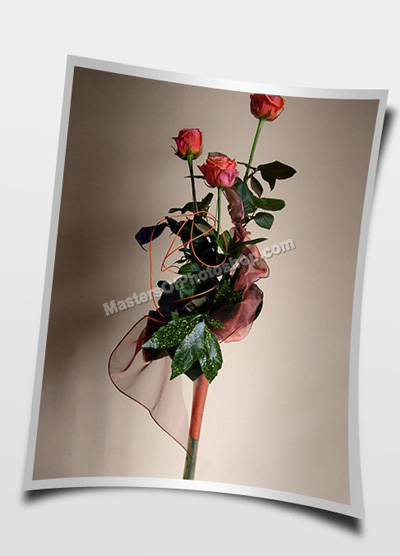
Duplicate the layer and scale down uniformly. Fill it with black color. This will serve as mask area for the photos.
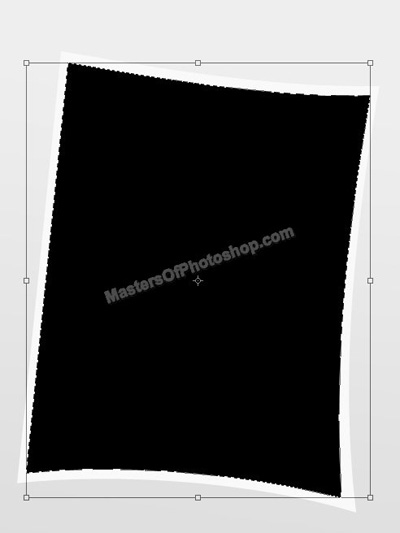
Insert any image. Move this layer just above the mask layer in layer order in layer palette. Press Ctrl+Alt+G to create a clipping mask.
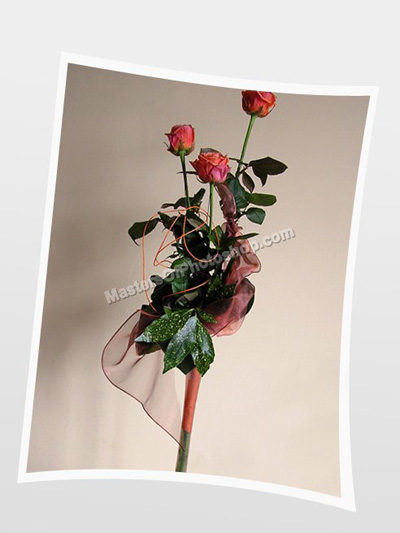
Duplicate the original white frame layer. Double click the layer to open layer style window. In gradient overlay apply gradient settings as shown.
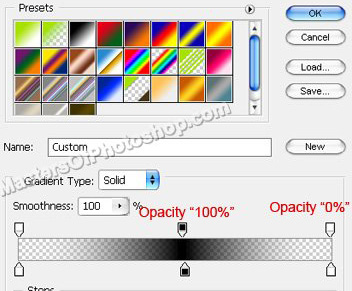
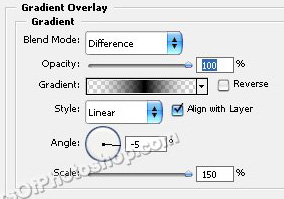
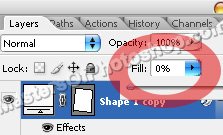
Reduce the fill value to 0%.
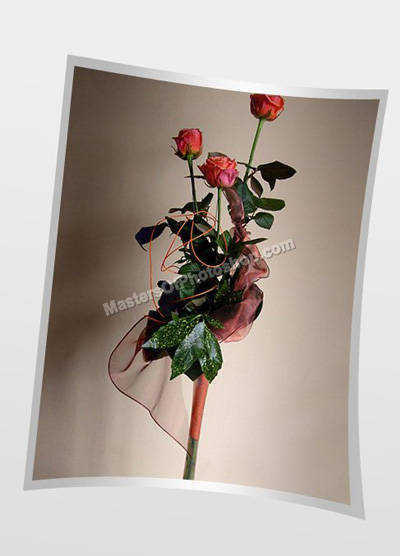
Ctrl+Click the layer thumbnail to get the selection. Press Alt+Ctrl+D to feather the selection. Feather the selection by 4 pixels.
Right click the selection and select transform selection. Move and rotate a bit.
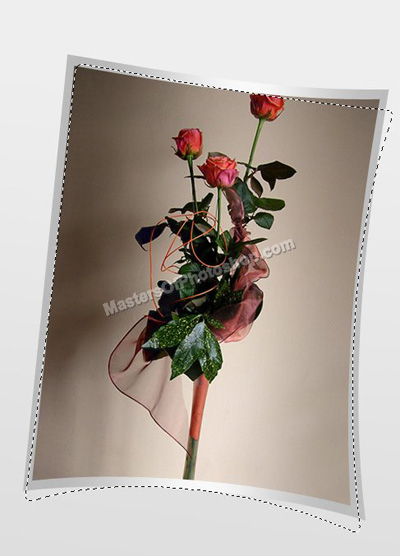
Create a new layer an fill it with dark gray color.