Create a rounded rectangle using rounded rectangular shape tool.
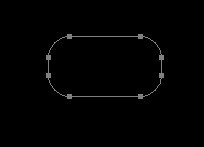
Double click the layer to open layer style window. Apply settings as shown.
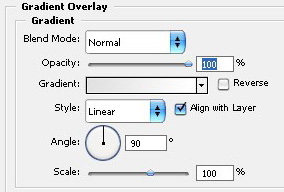
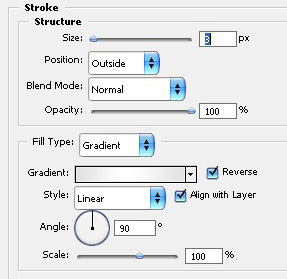
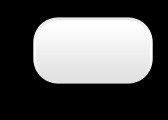
Create another rounded rectangle as shown.
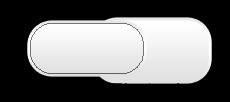
Create another rounded rectangle using rounded rectangular shape tool.
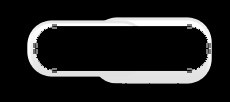
Double click the layer to open layer style window. Apply settings as shown.
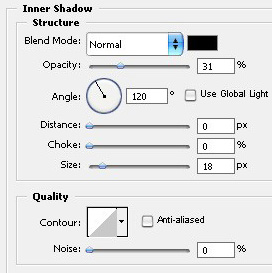
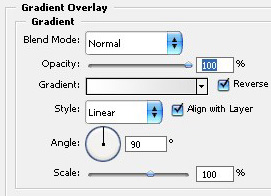
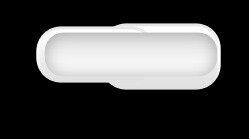
Create a rounded rectangle smaller then the previous one using rounded rectangle shape tool.
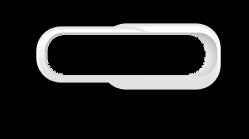
Double click the layer to open layer style window. Apply settings as shown.
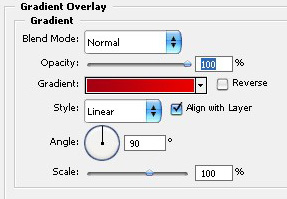

Ctrl+Click the layer thumbnail to get the selection. Press CTrl+T and scale down horizontally.
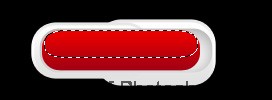
Create a new layer and fill it with white to transparent gradient.
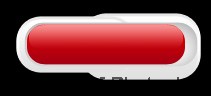
Create some joint parts using basic shapes.
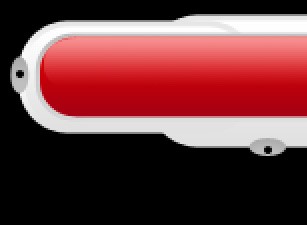
Create a wire connecting both the circles using 1 pixel solid brush tool.
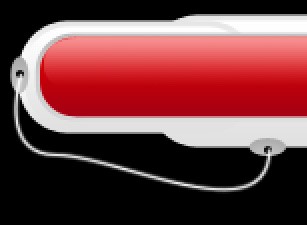
Type link name over the button using a nice font.