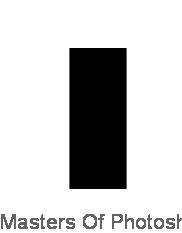
Create a rectangle using rectangular shape tool.
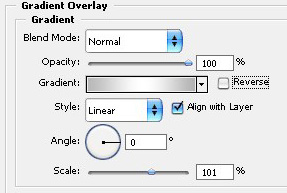
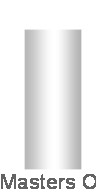
Double click the layer to open layer style window. Apply settings as shown.
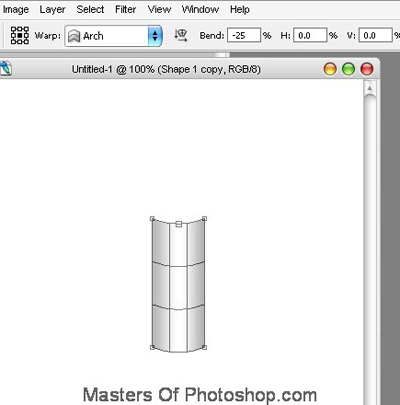
Press Ctrl+T. Right Click and select Warp. Select "Arch" from the preset warp shapes. Adjust settings as shown.
Create an ellipse using elliptical shape tool. Place it as shown in the image below.
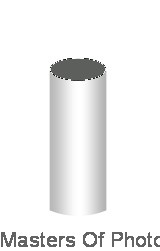
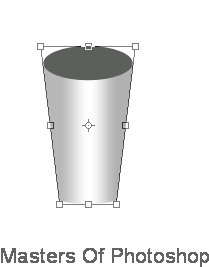
Select both the layers. Press Ctrl+T. Right click the layer and select perspective.
Adjust nodes as shown.
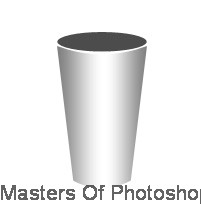
Create a circle using elliptical shape tool.
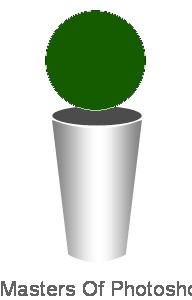
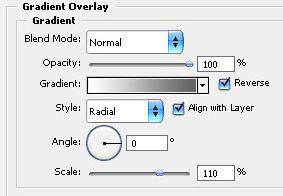
Double click the layer to open layer style window. Apply settings as shown.
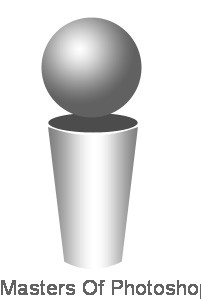
Type company name and puch line using a nice font.