Create a rectangle using rectangular shape tool.
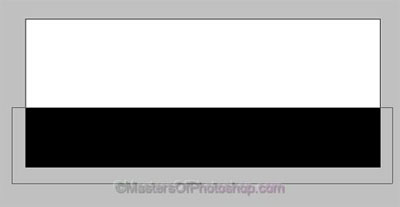
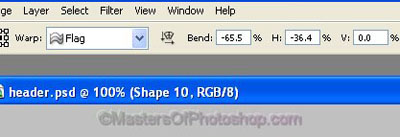
Press Ctrl+T. Right Click and select Warp. Select "Flag" from the preset warp shapes. Adjust settings as shown.
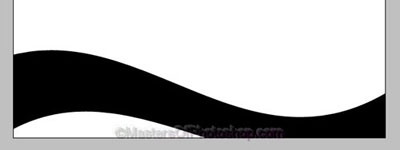
Insert any background image. Change the warped rectangle layer color to white.
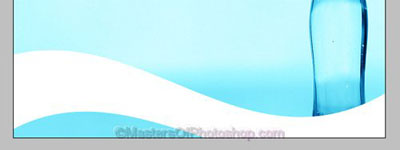
Similarly create more warped rectangle layer with different colors.


Create a shape as shown using pen tool.

Create a shape as shown. Place it on the top.

Duplicate the layer. Move it 2 pixels to right and top. Change the color to gray.
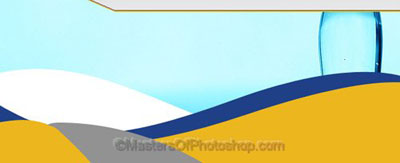
Ctrl+Click the layer thumbnail to get the selection. Create a new layer. Apply Black to white gradient.
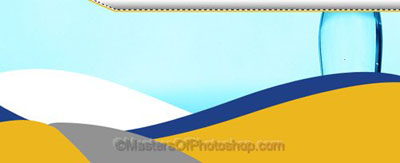
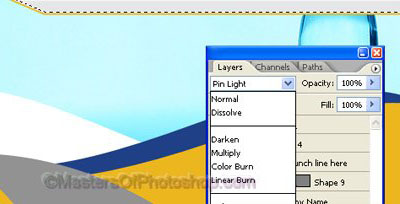
Change layer mode to "Pin Light" for this layer.
Type link names using a nice font and color.

Create some flower shapes using custom shape tool. Reduce the opacity.

Insert company name, logo and cutout of an image as shown.