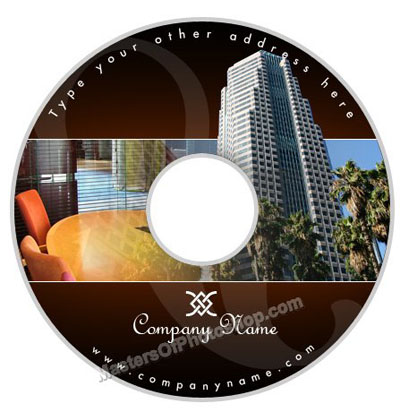
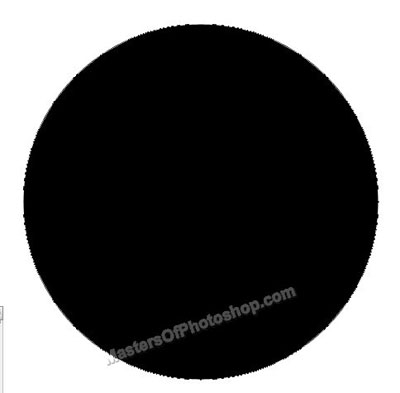
Create a circle using elliptical shape tool.
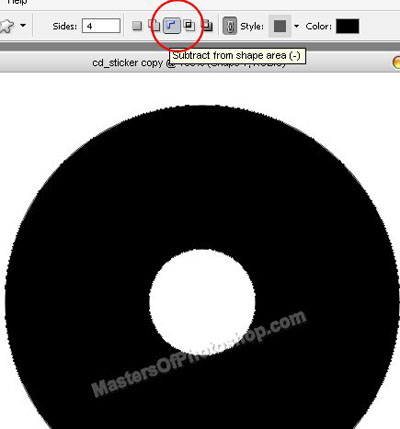
Enable "subtract from shape area" at the top bar. Create a circle using elliptical shape tool.
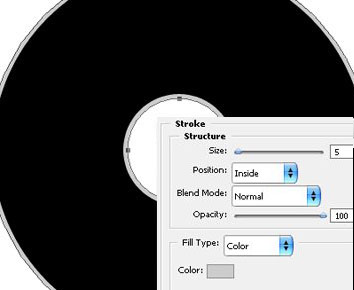
Double click the layer to open layer style window. Apply settings as shown.
Create a rectangle using rectangular shape tool.
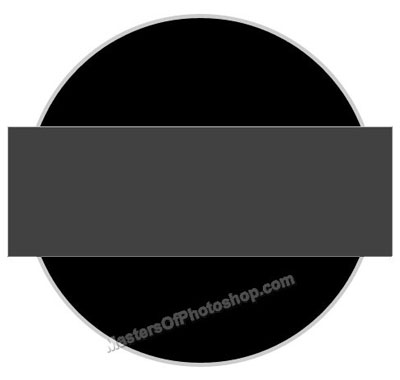
Double click the layer to open layer style window. Apply settings as shown.
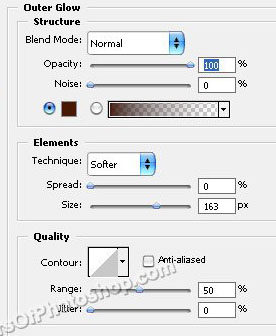
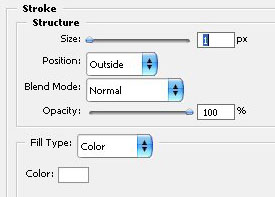
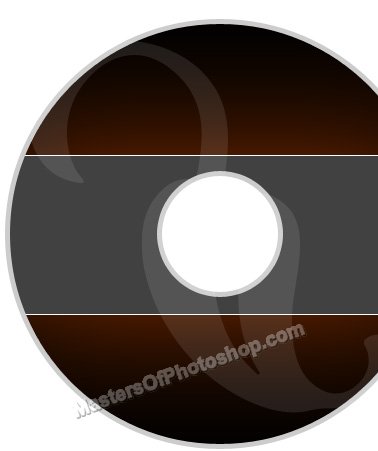
Press Ctrl+Alt+G to create a clipping mask.
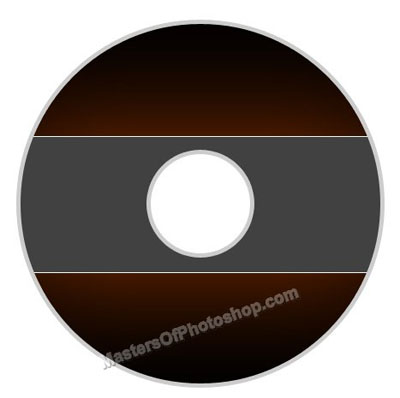
Create "Ornament" shape using custom shape tool. Press Ctrl+Alt+G to create a clipping mask. Reduce the opacity to 10%.
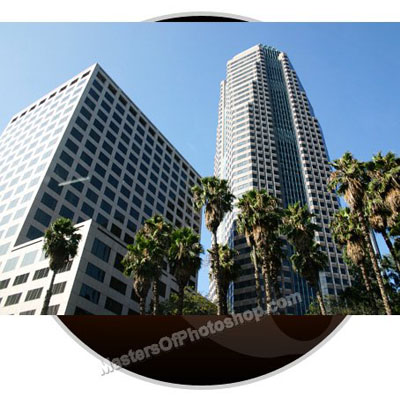
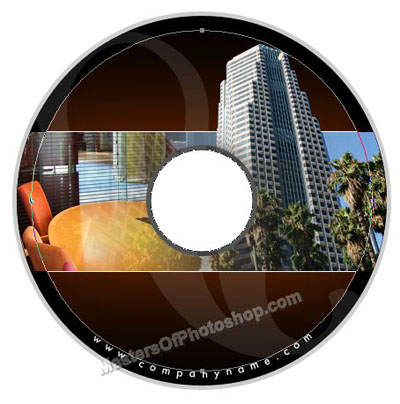
Insert any image.
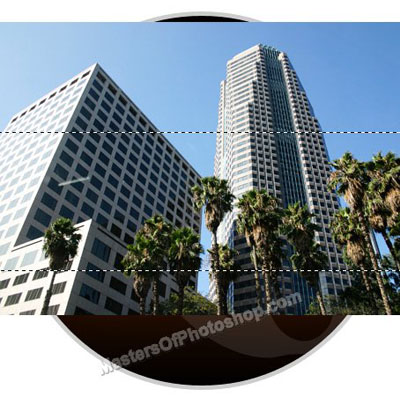
Ctrl+Click the rectangle layer thumbnail to get the selection.
Press Ctrl+Shift+I to inverse the selection. Press Delete. Now Ctrl+Click the ellipse layer thumbnail to get the selection. Press Ctrl+Shift+I to inverse the selection. Press Delete.
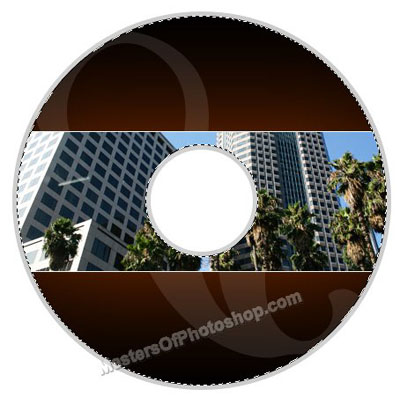
Select eraser tool with soft brush settings and remove the left areas.
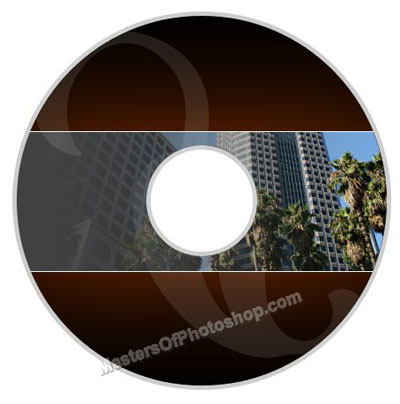
Insert the image again. Cutout the building and place as shown.
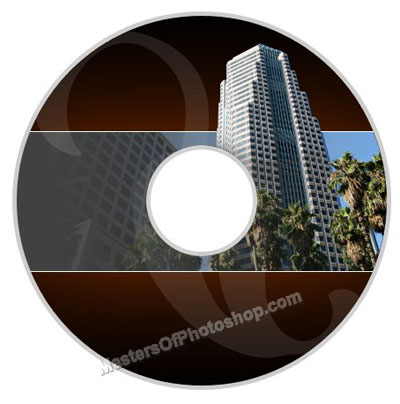
Similarly insert another image.
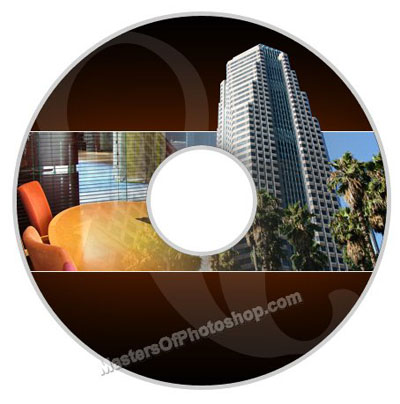
Create a circle using elliptical shape tool in path mode from the top bar. Select the path using path selection tool.
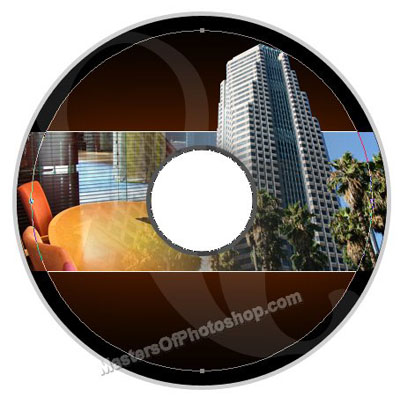
Select type tool and click over the path to type text on the path. Type details using a nice font.
Insert logo and company name.