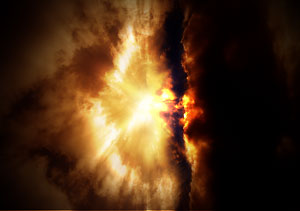
1. Find nice clouds photo. This one looks great: Sunset
2. Crop like in the picture below using Crop Tool.
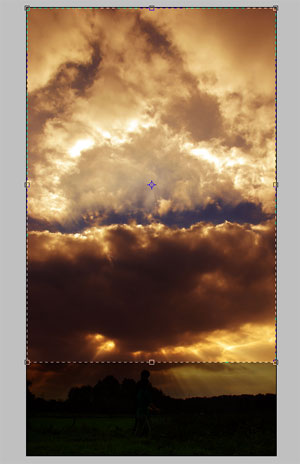
3. Filter -> Sharpen -> Sharpen, then Ctrl+F to repeat it once more.
4. Image -> Rotate Canvas -> 90 CCW
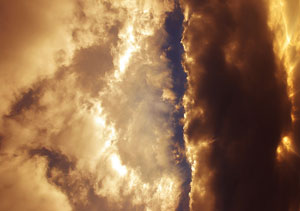
5. Press Ctrl+L to open Level Menu and move your black triangle a little bit to right to get more dark image.
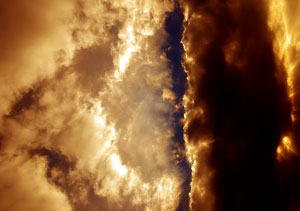
6. Press Ctrl+J to duplicate background layer.
7. On the new layer use Filter -> Blur -> Radial Blur with these settings:
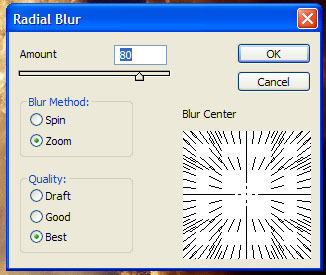
8. Filter -> Sharpen -> Sharpen, then Ctrl+F to repeat it once more.
9. Set new layer's Blending Mode to Overlay.
10. Make a new layer and using Polygonal Lasso Tool make a selection like this:
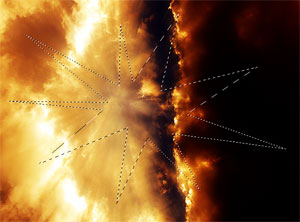
11. Then, Select -> Modify, Feather, 15px.
12. Shift+Backspace and fill selection with white color.
13. Set layer's Blending Mode to Overlay.
14. Select your background layer and go to Filter -> Render -> Lightning Effects, use these settings:
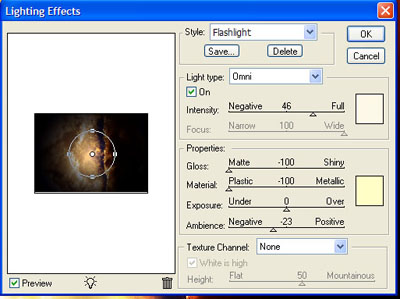
15. You have focused camera on something like explosion… cloud photos are useful ;)