1. Make a new document, size doesn't matter.
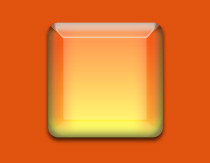
2. Make a new layer and using Rounded Rectangle Tool make a shape like this:

3. Right click on this layer and select Blending Options.
4. OK, let's go:
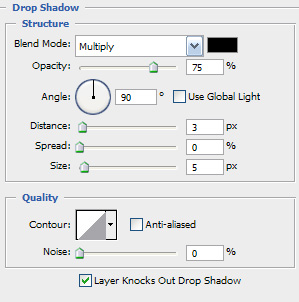
Drop shadow settings:
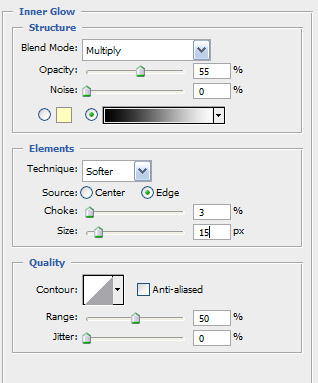
Inner glow settings:
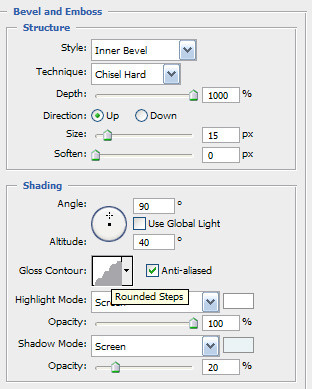
Bevel and Emboss settings:
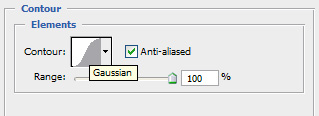
Contour settings:
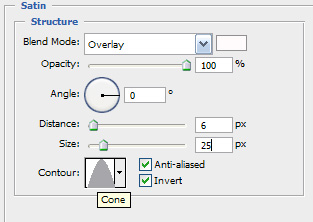
Satin settings:
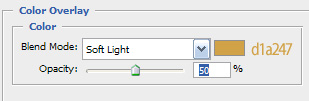
Color Overlay settings:
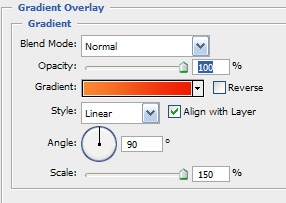
Gradient Overlay settings: