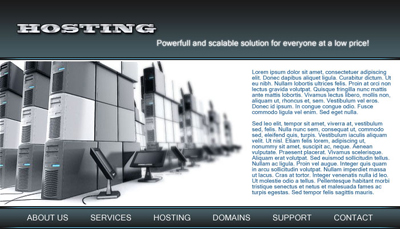
1. Create a new document (700*400) and fill the background with #FFFFFF using the paint bucket tool.
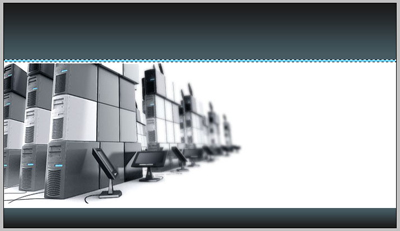
2. Insert the following image, this is the header image and it needs no further editing…

3. Now select a rectangle like shown below (mine has a heigth of 100px) with your rectangular marquee tool and fill the selection with #1b1b1b on a new layer (layer - new layer).
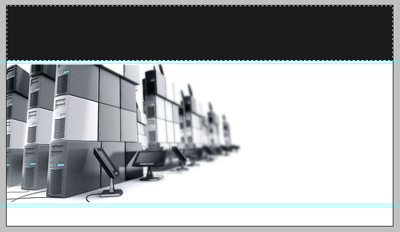
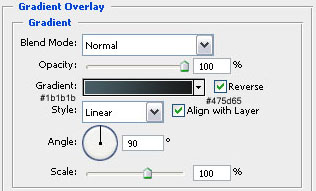
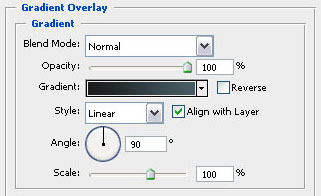
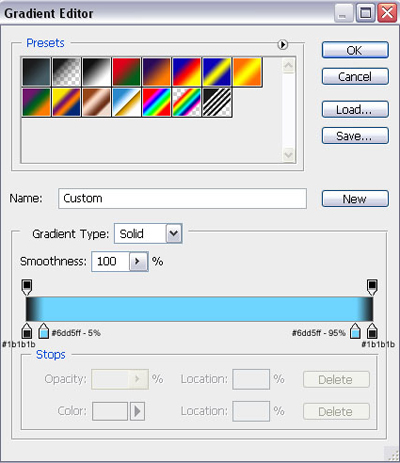
4. Now we're going to adjust the blending options and add a gradient overlay with these settings.
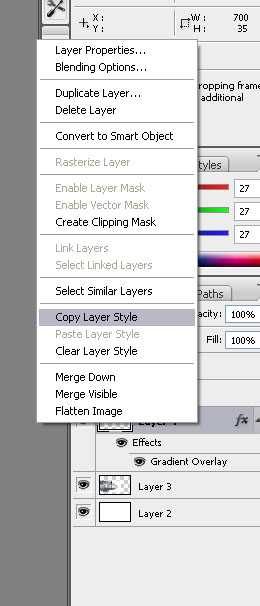
5. Create another new layer and make a selection at the bottom of your header using your rectangular marquee tool with a heigth of 35 pixels! Fill it with any color using your paint bucket and copy the layer style of your previously created layer and paste it on the one we've just made like shown in this second picture…
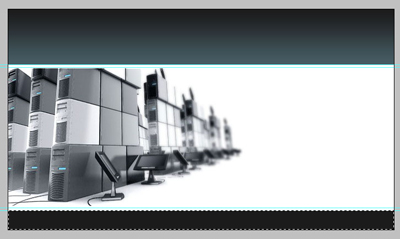
6. Now adjust the blending options of the layer we've designed in step 5 and use these settings (they are almost remaining the same but this time we don't reverse the gradient).
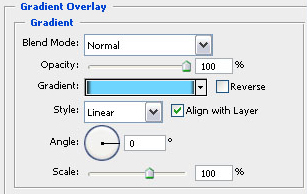
7. Create another new layer (layer - new layer) and select a 5px high line just under the selection from step 3… Fill it with blue #6dd5ff!
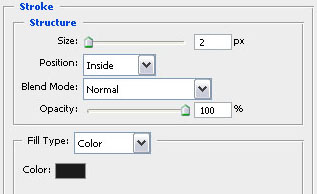
8. Now adjust the blending options yet again (layer - layer style - blending options) and use the following settings shown in the screenshots…
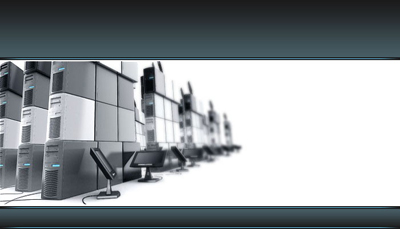
9. Duplicate that layer twice (layer - duplicate layer) and position them like shown below…
10. Now type out a title for you site using your horizontal type tool and apply the text effect from one of my previous tutorials but change the color overlay to #c7cad1. The font I used is blackoak std with a size of 20px.
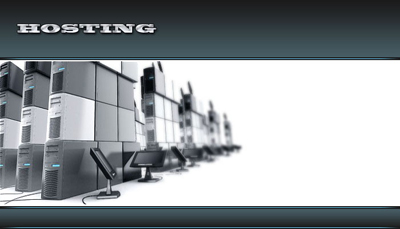
11. Type out some text for the menu… The font used is microsoft sans serif with a size of 14px.
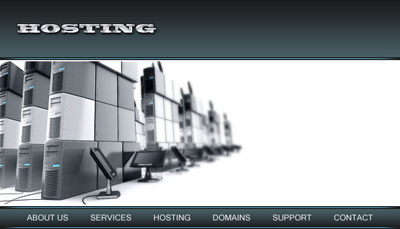
12. In this last step I've just added some more text so it's filled with some content to give it a realistic look… The text under the title has an outer glow effect… Just so you know! And there you have it, your own hosting banner! You can use it to host sites and promote yourself!