1. Create a new document (150*150).
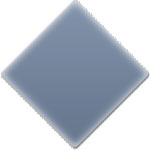
2. Fill the background with #FFFFFF using the paint bucket tool and select a square size shape with your rectangular marquee tool (set feather to 3px) and fill this shape with #72849e on a new layer using the paint bucket tool so you end up with this in the second step.

3. Now select your button layer and go to edit - free transform and rotate it with 45°.

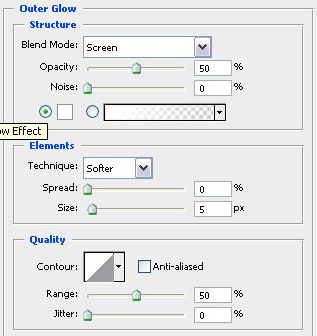
4. The next step is to adjust the blending options on this layer like so.
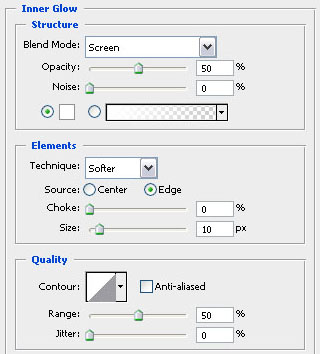
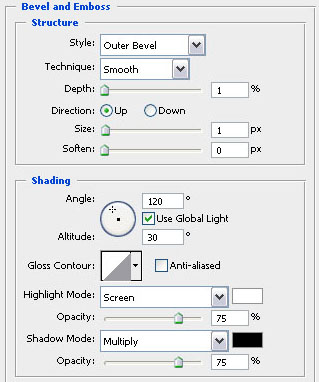
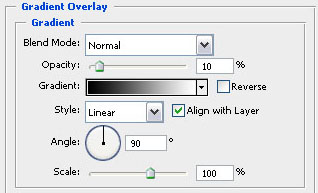
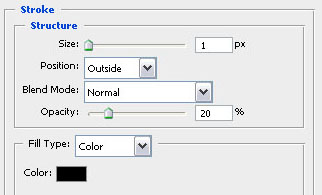
5. Your button should now look like this when you've added al the effects.
6. Now type out some text (Arial Black is a good font for this kind of effect) and adjust the blending options on this text layer.
7. The button should look like my example below if you followed all the steps correctly.