1. Create a new document (400*120).
2. Insert a nice background picture and you should have something like this.

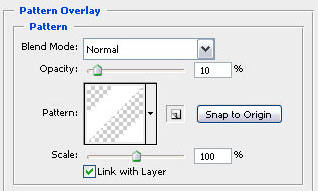
3. Now adjust the blending options of the background layer (layer - layer style - blending options) because we want to add a pattern to make it look a little bit nicer.
4. Create a new layer and start adding some extra stars using this brush so that everything is a bit lighter like my example.

5. Now it's time to add some text in #FFFFFF (I used the arial black font) and set the blending mode for this layer to overlay.

6. And last but not least, add a simple 1 stroke black #000000 border on another new layer and your signature should look like the example below!