

1. Create a new document (300*150).
2. Fill the background with #eeede3 using the paint bucket tool.

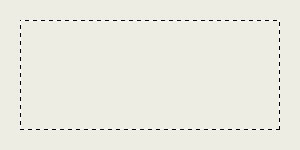
3. Select a rectangle with your rectangular marquee tool and fill it with #e7e7e7 on a new layer (layer - new layer).

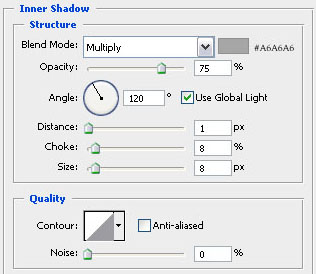
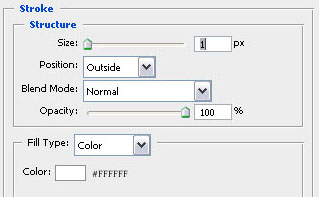
4. Now adjust the blending options on this layer like this.
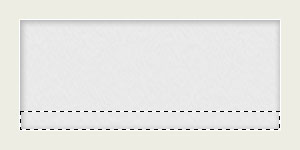
5. The next thing you should do is select a rectangle inside the previous layer like this and fill it with #FAFAFA!
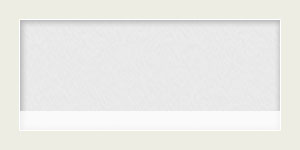
6. In the last step you just have to add a little bit of text… For the main text I used a font called calibri and for the red (#f26522) text myriad pro…

