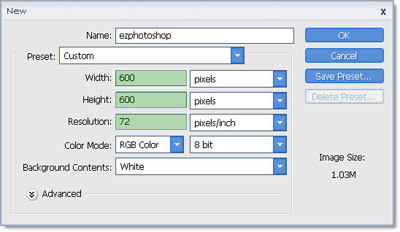
1. Create new document, size 600 x 600
2. First, we draw eyes
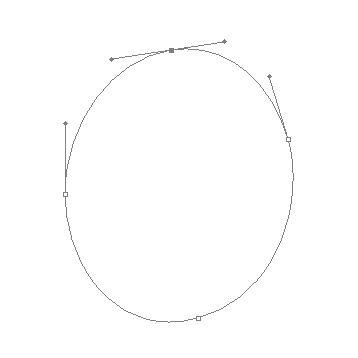
Choose Paths mode on Options palette

Draw a path like this
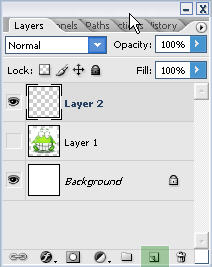
Create new layer, select this layer
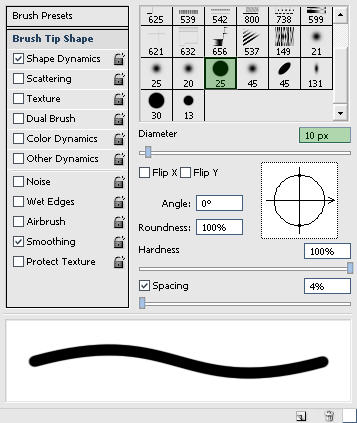
Choose Brush Tool and Set Brush Presets
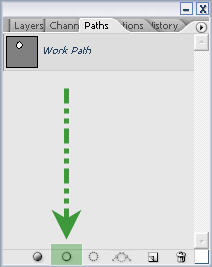
Change to Path palette, click in Stroke with Brush
We have
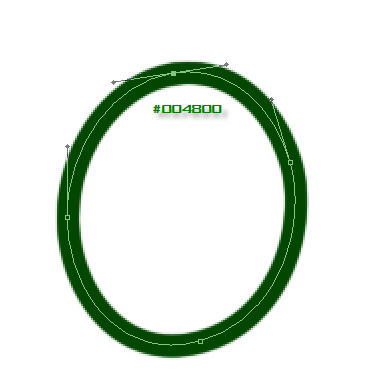
draw another eye
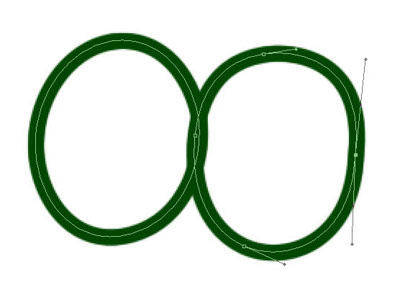
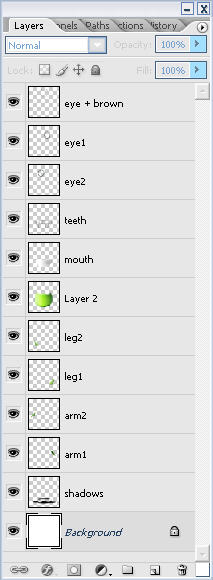
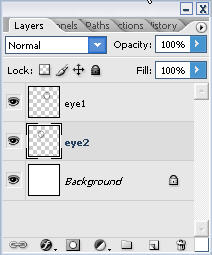
Layer Shot
3. Draw eyebrows
Use Pen Create two paths like this, then Right- Click in screen, choose Stroke Path (Use this method when knowing the precise configuration in Brush Presets )
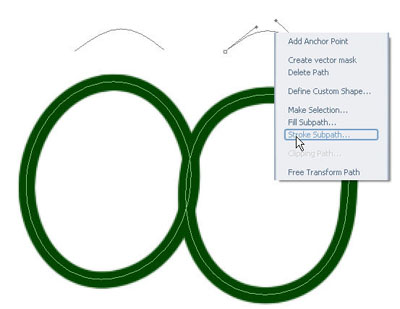
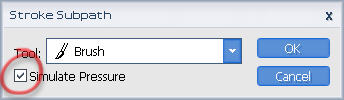
Pick in Simulate Pressure
We have, like this Ô_Ô huh ;))
.jpg)
4. Next
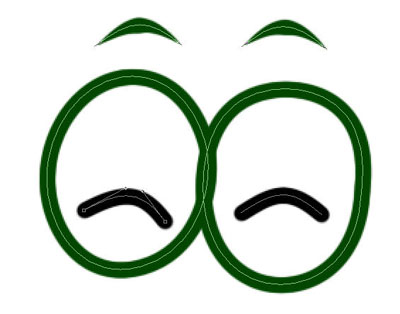
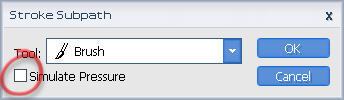
Don't pick Simulate Pressure here
5. And now, draw his body
Do the same step to stroke path first
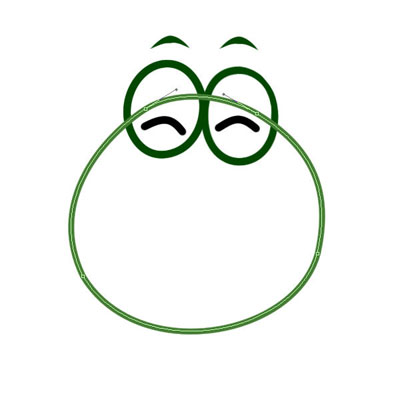
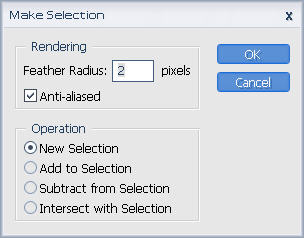
Then Make Selection
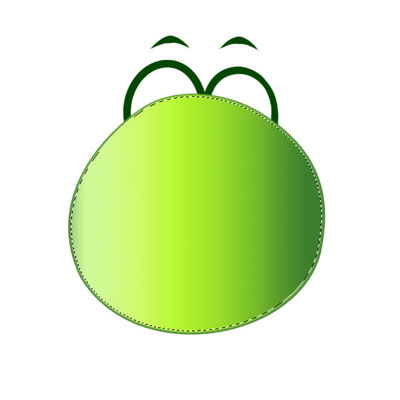
Use this gradient

To Fill ( on new layer )
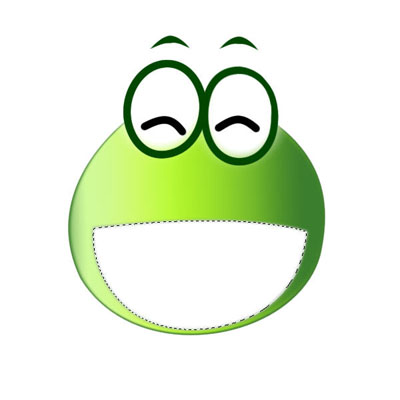
6. His Mouth
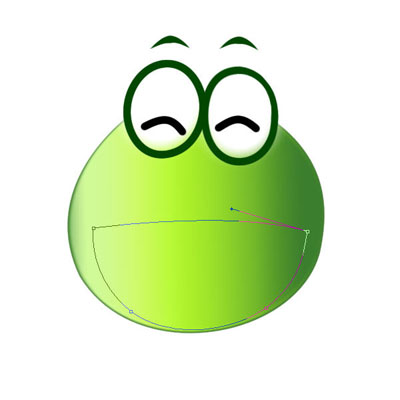
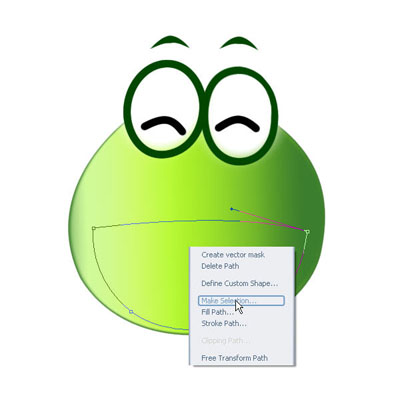
Fill white color
Draw more path like this to his teeth
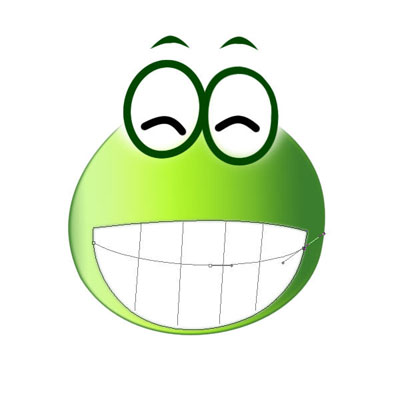
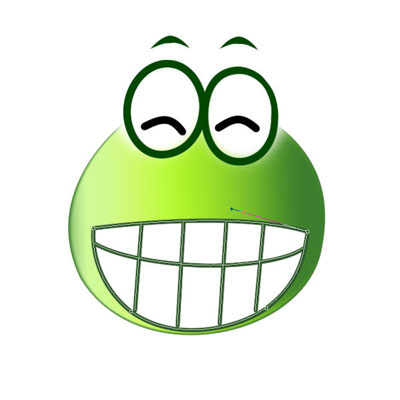
7. His leg :|
Use this gradient ( this is the last gradient but remove some color )

Use Dodge and Burn Tool to make some shadows and highlights here
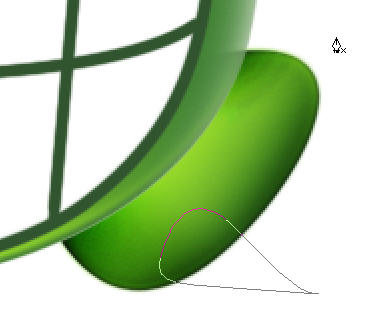
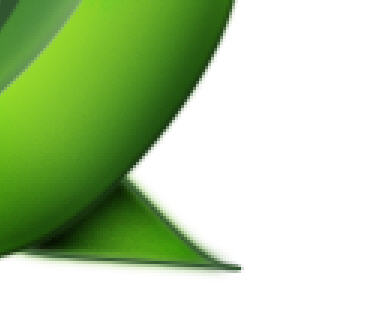
When complete, you duplicate this layer for left leg
8. Arm !!
Use Pen select this selections
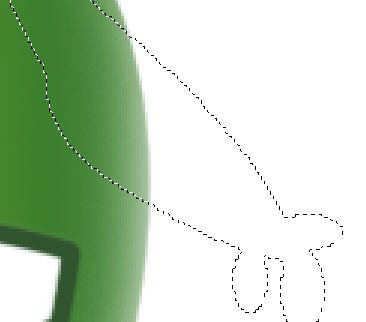
And copy to left arm

9. Create some shadows

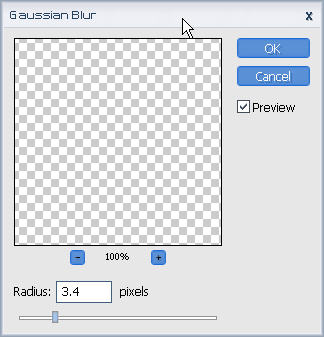
Blur it ( Filter >> Blur >> Gaussian Blur )

10. Now, use Dodge and Burn Tool make shadows and highlights on this frog

Done !!!!!!!!!!!!!

Layer Shot !!