

I will create another web hosting tutorial. in this tutorial i will use the last 3D server i have created in tutorial number 140
This is my final result. You can download the following PSD layout to see better how you it's done.
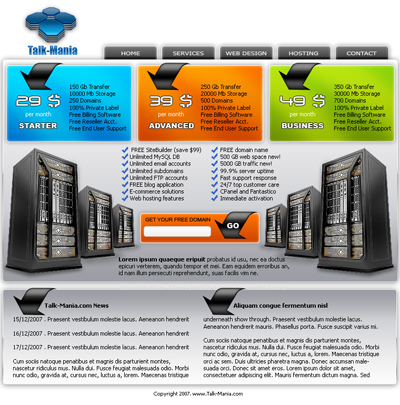
Now i will show you how simple you can create this layout
Let's start with a new document
Size 760x770 pixels
Background color : white
Select Rounded rectangle tool ( set the radius to 5 pixels ) and create a few shapes. i will use different colors, so you can see better what i am doing
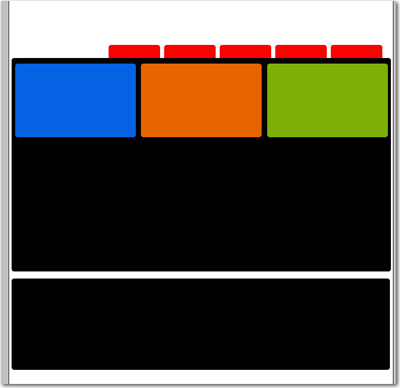
Now for the red shapes ( our buttons ) please add the following layer styles
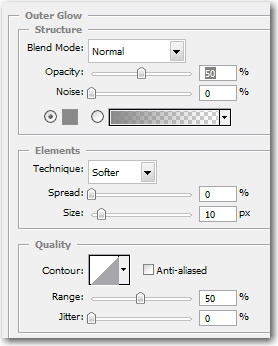
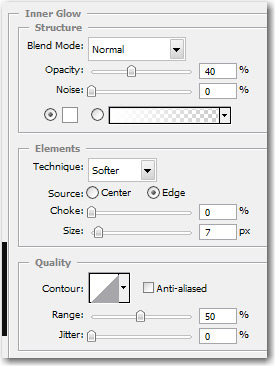
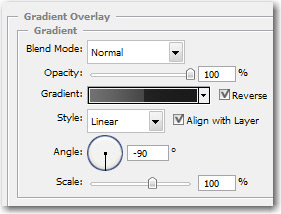
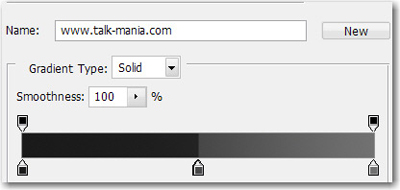
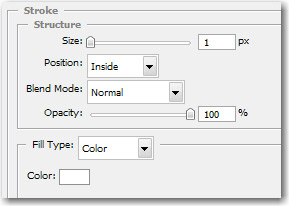
After i have applied the same layer style for all buttons here is my result

Now select the big black shape, and add the following layer styles
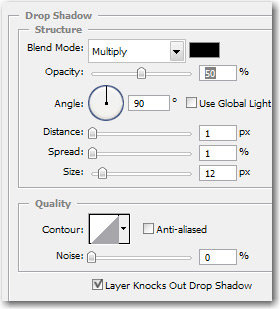
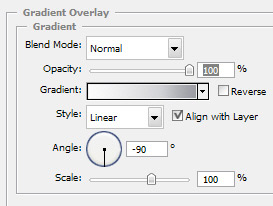
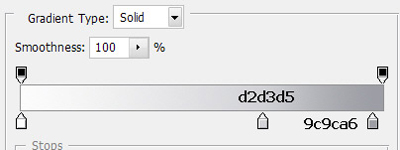
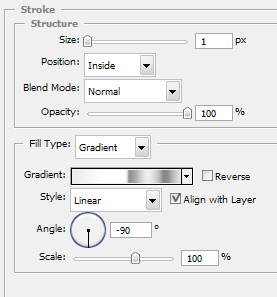
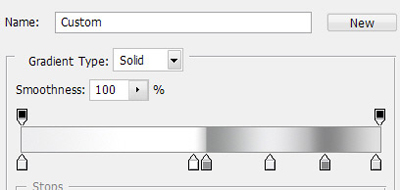
This is my result
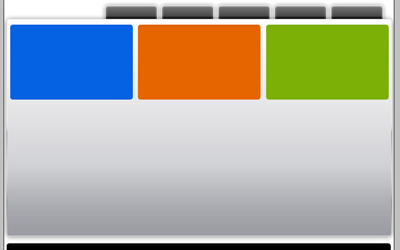
Now for the other black shape add the following layer styles
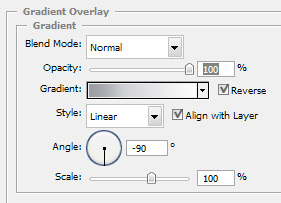
This is my result
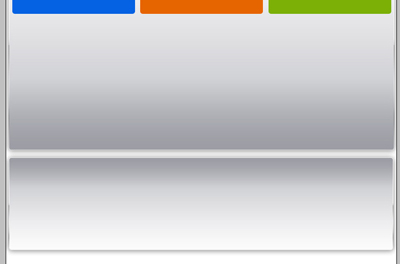
Now let's add a layer style for the blue shape
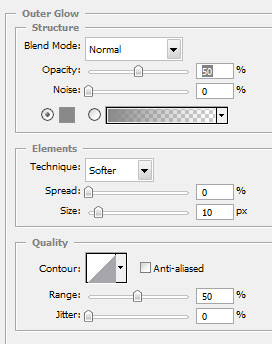
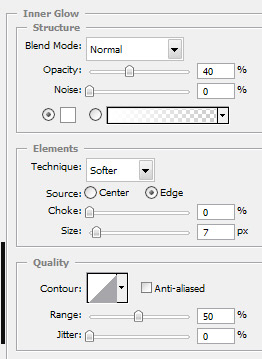
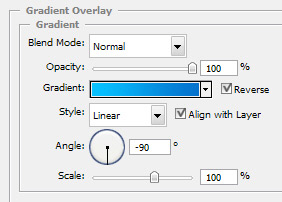
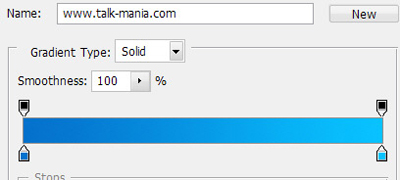
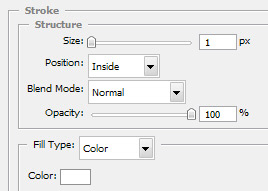
Now for the orange shape add the following layer styles
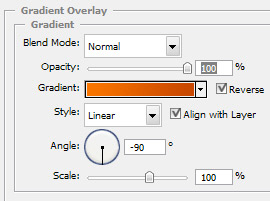
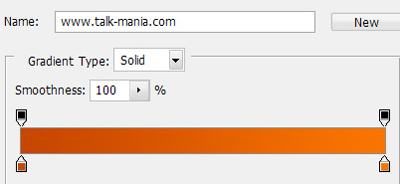
Now for the green shape add the following layer styles
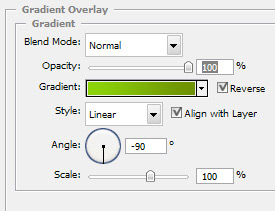
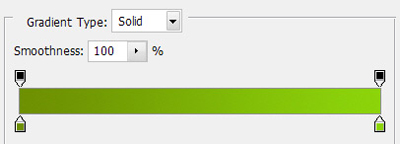
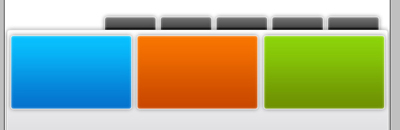
This is my result
Now select the Blue shape layer.Hold down Ctrl key from your keyboard, and with your mouse click on the layer thumbnail.
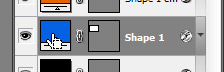
You can see that your blue layer is selected.
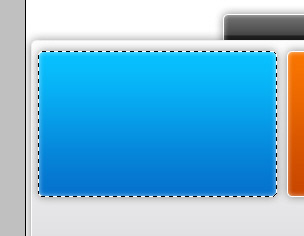
Now create a new layer right above the blue layer. You can create the layer if you press Ctrl+Shift+Alt+N .
After you have created the layer, select Brush tool, and with a round brush ( Airbrush Soft round ) create some random lines on the new layer.
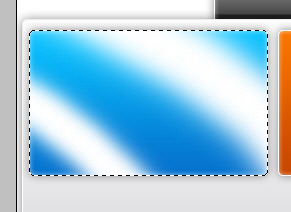
Now for this new layer change the blending mode to " overlay " and then reduce the opacity to 40%
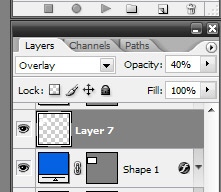
Press Ctrl+D to deselect, and then you should have something like me
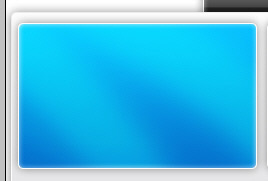
Be sure you have this layer selected , then press Ctrl+J ( this action will duplicate the layer )
With Move tool place the layer over the orange layer,
You can duplicate this layer 2 times, so you can place also one over the green layer
This is my result
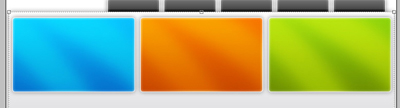
Now it is time to add some images on this layout. i will add the 3D servers i have created in our previous tutorial.
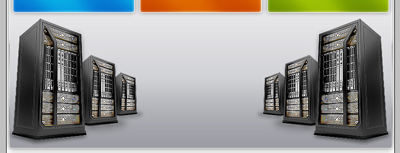
Now i will add some text with Text tool
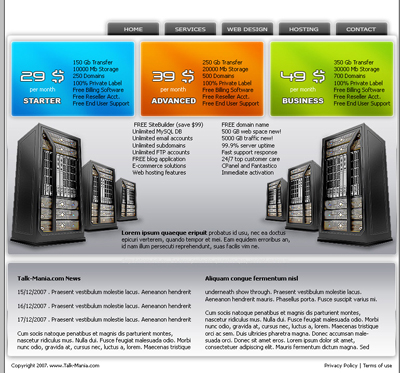
Between servers i will create another shape

Please load some brush arrows and add the following arrows on our layout
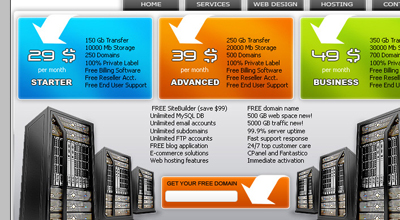
For this arrows please add the following layer styles
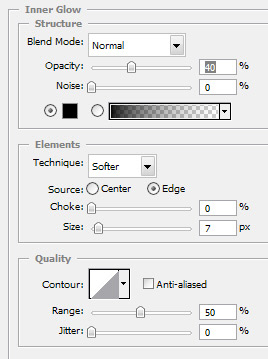
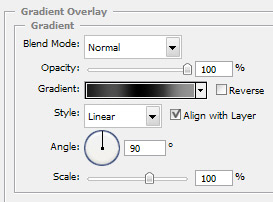
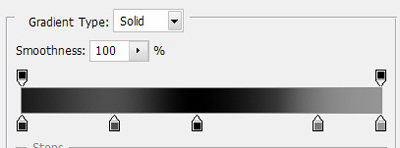
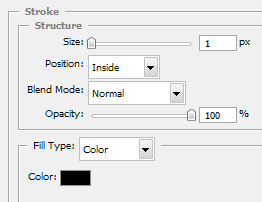
This is my result

Add a logo.
I hope you like it.
