

So let's start by creating a new document in photoshop
Size 760 x 770 pixels
Background color #333333
Zoom out your document to 50 %, then select Ellipse tool, and start creating 3 shapes. I will use different colors for the shapes. You can use only one color.
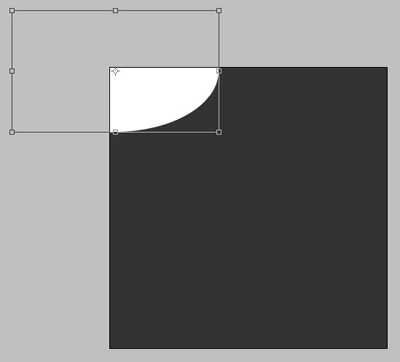
Here is the first shape
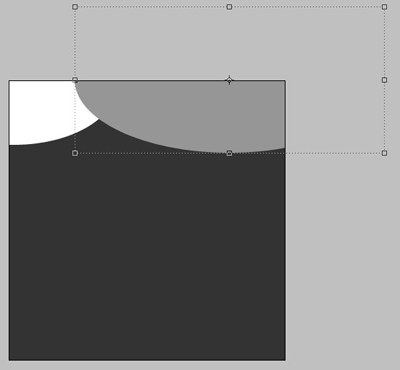
this is the second one
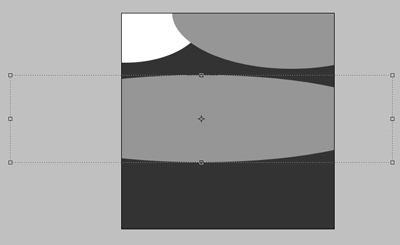
And here is the third one
Now Apply the same layer styles for all the shapes
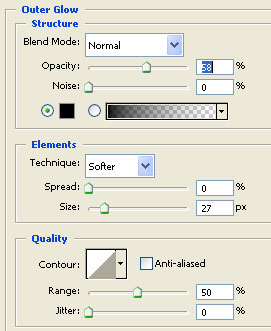
here are the settings for layer styles
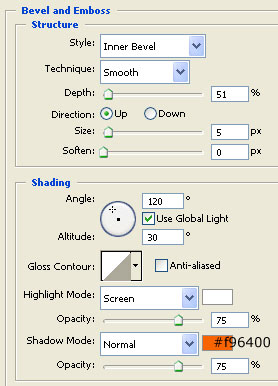
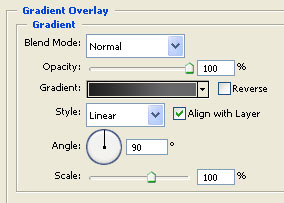
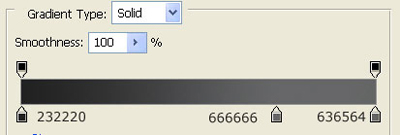
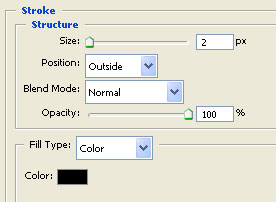
here is my result
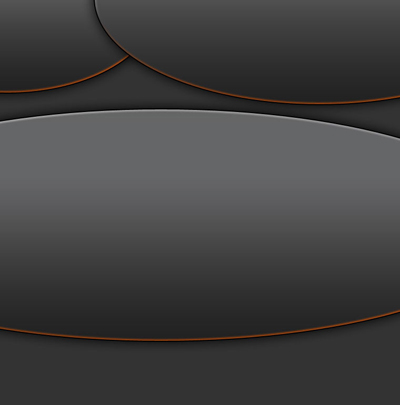
Now select rectangle tool , and make a simple rectangle
Use the following color #f63d05
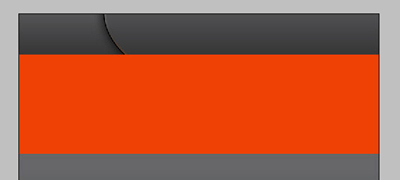
Then drag the layer with this orange rectangle above the background layer
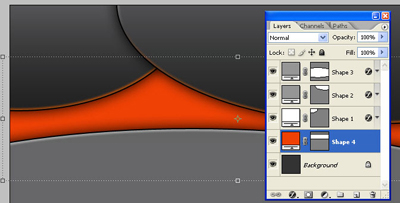
Select Elliptical marquee tool and make a big selection like in the following image
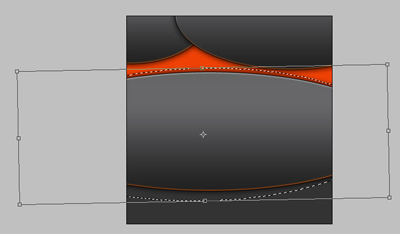
Then create another layer ( press Ctrl+Shift+Alt+N ) and fill this selection with the Paint bucket tool
I will use the following color: #c22d00
Then drag the layer like in the following image, and reduce the opacity to 20 %
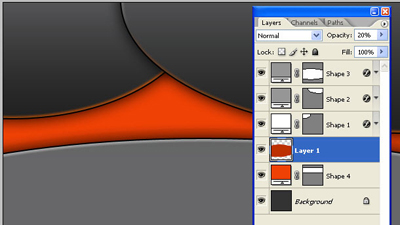
Select Ellipse Tool. Set your foreground color to #333333 and make a big shape like in the following image
Please zoom out your document before you are making this Step. 33 % should be fine
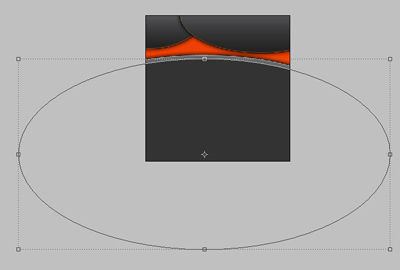
Now grab Rounded Rectangle tool ( set the radius to 10 pixels ) and make the following shapes
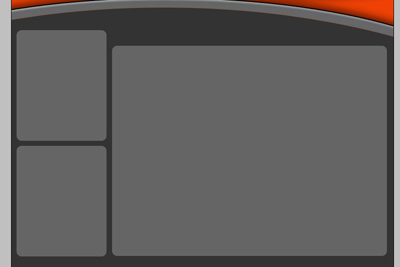
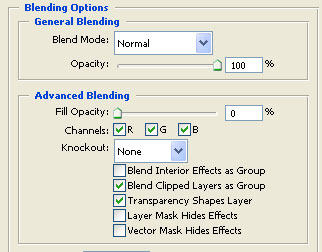
For this 3 rounded rectangles add the following layer style
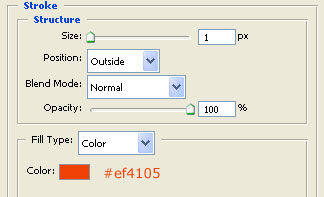
This is the result
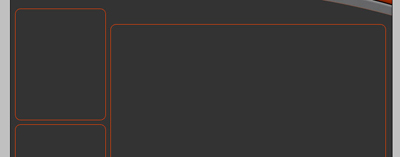
Now load the selection of the top left rectangle ( to load the selection first rasterize the layer , then go to Select > load selection
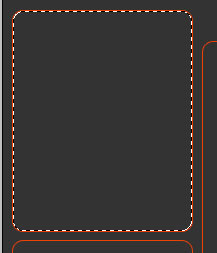
Select Rectangular Marquee Tool. be sure you have the following settings

Then make the following selection
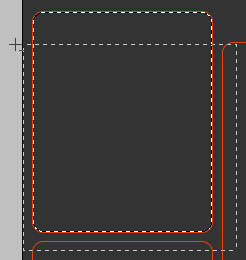
After you release the left mouse button you will have the following result
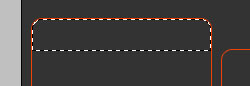
Create a new layer ( press Ctrl+Shift+Alt+N ) and with the paint bucket toll fill the selection with white then press Ctrl+D to deselect
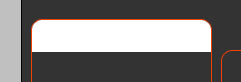
Then for this white shape add the following layer styles
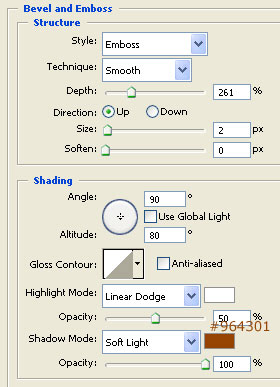
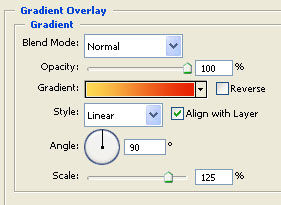
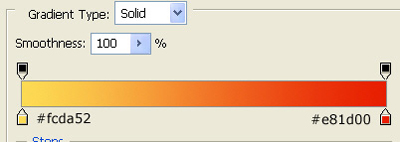
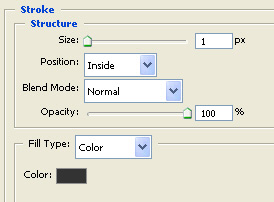
This is my result
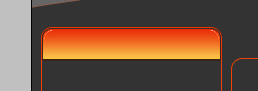
With the same technique do the same for the other 2 rounded rectangles
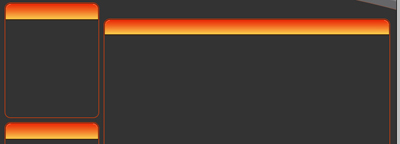
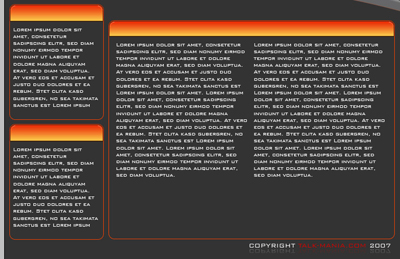
Now add alone some text
Now add with another font some text buttons
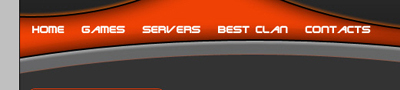
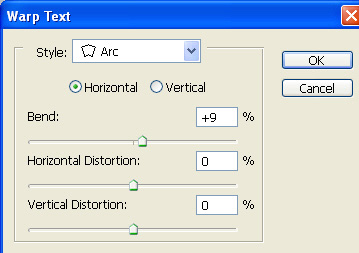
Select all this text with type tool and go to Layer > Type > Warp text...
And use the following settings
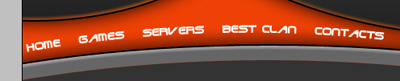
Now press on Ctrl+T , and rotate all the text layer until you are happy
Then add a text logo, or any shape you have
The logo you can download from VIP area ( this one is a flatten image 0
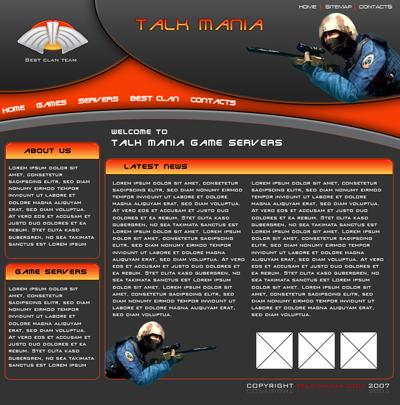
I think we are ready with this game layout. Of course you can add as many details you want.
