1. Start out with a new 375px wide x 200px tall image. Next create a new layer titled Large Circle. Using the Elliptical Marquee Tool, create a selection in the center of the image that is aboiut 90 pixels in diameter. I filled the selection in using color #3d4144, however you may choose any color you like. If disired, go ahead and add a very sublte Drop Shadow with a Distance of 0 and size of 5 by right-clicking on the layer and selecting Blending Options.

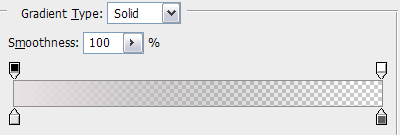
2. Next we are going to add a gloss effect to the circle. Create a new layer, then using the Elliptical Marquee Tool, create an oval selection over the top half of the previous circle. Using the Gradient Tool, fill the selection in with a gray to transparent gradient as shown below from the Gradient Editor. Next, with the current layer still active, Ctrl+click on the first circle layer below. This will select the outline of the circle below. Next go to Select > Inverse then press delete/cut on your keyboard to remove any of the overhang on the new circle from the circle below. Finally, change the opacity for the overlay circle to 15-20% as desired.

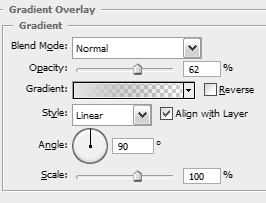
3. Next add the company name to the logo or any other relevant text you would like to add. I used a font called Candara for my next. For more visual appeal, I included one word in the circle using a white color and one word outside of the circle using a dark gray color (#5e5c5d). Afterwards, ad a Gradient Overlay.

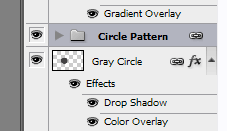
4. In the next few steps we will create a series of small circles that gradually decrease in size to place around the top half of the larger circle in the logo. Before creating the first circle, I suggest that you create a new layer group for all of the circle layers to go into. At the bottom of the Layers palette, click on the New Group button that is located directly next to the trash can. Name this new group Circle Pattern.
5. Using the Elliptical Marquee Tool, create a selection for the first circle on the left side of the circle centered vertically, as shown below. My circle was about 15 pixels in diameter. Then fill this circle, which will stand out from the other smaller circles, with its own unique color. I used a dark yellow color (#d5bb00).

6. Now that the first circle in the series in done, go ahead and create additional circles to complete the pattern. You will probably be tempted to copy the first circle and then go to Edit > Free Transform to decrease the size of each circle uniformally. Although this is fast, the Free Transform Tool pixelates the edges of the circles when decreasing the size of each, making the edges jagged. For the best results, create a new selection using the Elliptical Marquee Tool for each circle. I would suggest that you create each circle overtop each larger circle (on a new layer, of course) to make it easier to ensure that each circle is slightly smaller than the previous one instead of trying to estimate the size of each. Once each circle is created, just move it to the desired location.
Once you have completed all of the circles, you will have completed your very own logo!