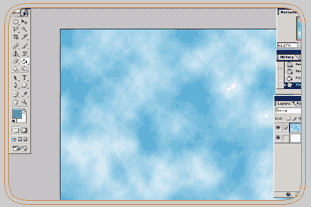
1. Open a new document 1024 to 768 pixel. Make a new layer, fill this layer with 3399CC and apply a Clouds Effect. (Filter-Render-Clouds).
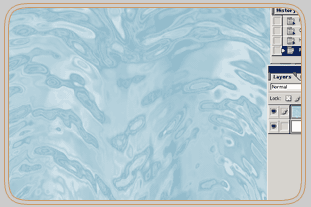
2. Go to Filter-Distort-Ocean Ripple and apply this effect by using Ripple Size=9 and Ripple Magnitude=9.
3. Go to Filter-Sketch and apply the Chrome Effect with the following settings: Detail=4, Smoothness=5.
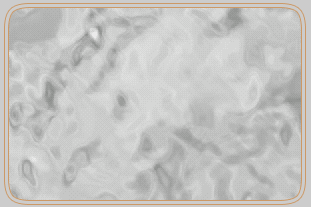
4. Now go to Filter-Blur-Radial Blur. Use Amount=20 and Blur method = Spin.
5. Furthermore go to Filter-Sketch and apply the Chrome Effect with the following settings: Detail=4, Smoothness=5.
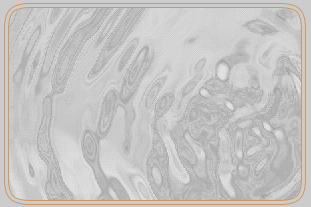
7. That looks pretty, right? If you don't want the water look like a twirl also go to Filter-Distort-Polar Coordinates. Polar to Rectangular.
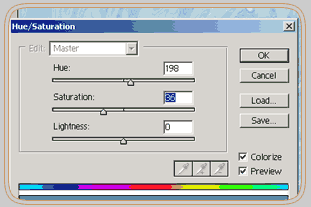
8. Well done. You're ready. If you like this tutorial please vote for me!