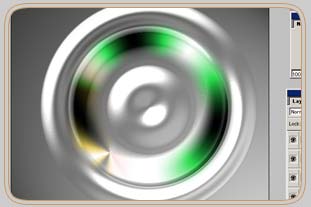
1. Make a New Image with 500 to 500 Pixel.
2. Make a New layer.
3. Format your Radial Gradient Tool like I do.
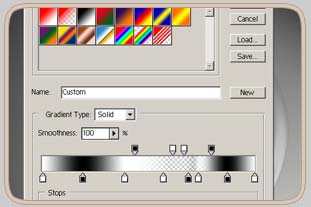
4. Draw from Center to Top.
5. So you will get something like this.
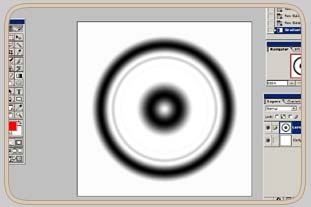
6. Now go to Filter-Stylize-Emboss and use this settings.
7. Wow, the same as I said. But it's not ready yet.
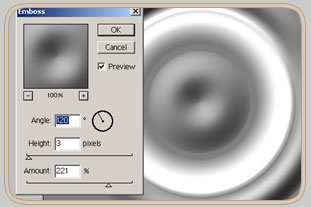
8. From this point there are endless methods to modify this picture.
9. Go to Background-Layer and make two new layer.
10. Now take your Angle Gradient tool and make something like this twice on each layer.
11. To modify your color go to Image-Adjust-Hue/Saturation and color your image as you like it.
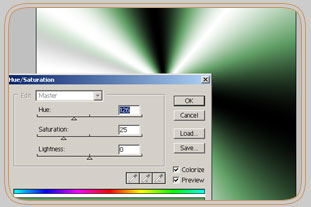
12. In order to make a cool metall-effect on it go to adjust-curves and modify your picture.
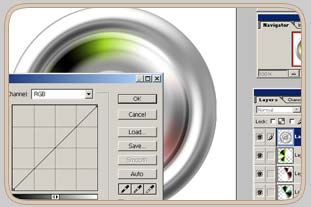
13. At least you have furthermore the option to modify the picture by going to filter-render-lighting effects.
14. Play around with the filters and you will get nice results.
15. Be creative and have fun.