
This photoshop tutorial will show you how you can adjust the flesh tones by removing the excess red easily.
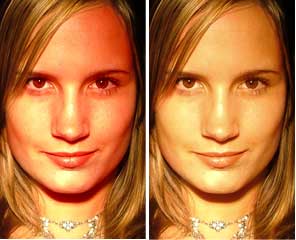
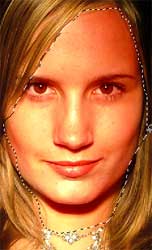
Step 1: Open your image, choose the lasso tool from your Tool Palette (or press L) and make a selection around all the flesh-tone areas in your photo. You can add other flesh-tone areas to the selection by pressing-and-holding the shift button.
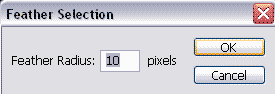
Step 2: Go to Select > Feather (or alt+ctrl+d) and enter 10px
Step 3: Choose Image > Adjustments > Hue/Saturation (or ctrl+U) ..When the dialog appears, click on the edit pop-up menu and choose Reds (you're only adjusting red tones in the selected flesh areas)
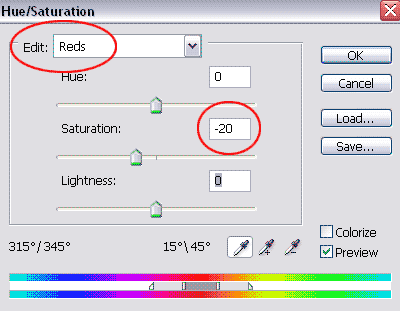
Play around with the saturation and hue, to get your desired tones.
