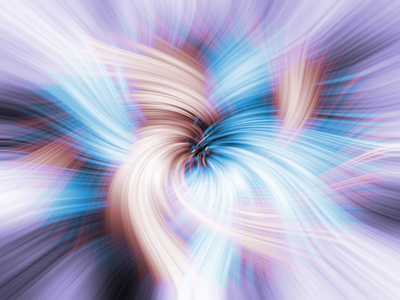
1. We're going to make a colorful and good looking swirl and you should start out by creating a 800*600 document. Now go to (filter - render - clouds) so you end up with something like this.
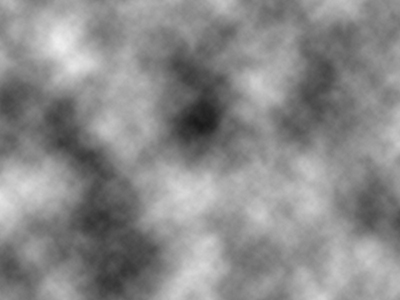
2. Now go to (filter - pixelate - mezzotint) and select short strokes in the drop down menu!
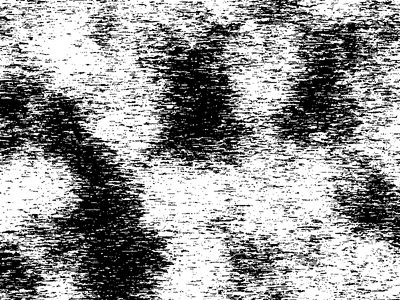
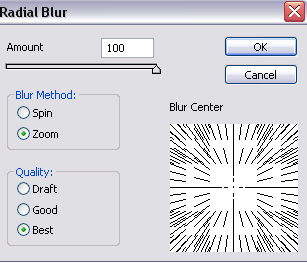
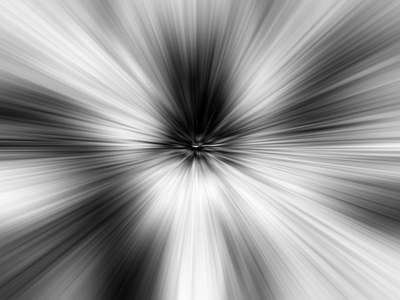
3. Add another filter (filter - blur - radial blur) and use the following settings, do this twice! In the second screenshot you can see the outcome of this third step!
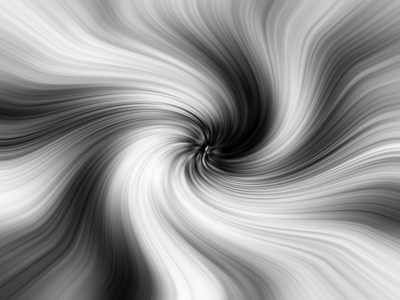
4. Add a twirl (filter - distort - twirl) with an angle of 120!
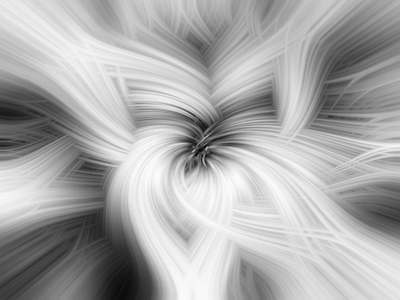
5. It looks boring right now but you have to duplicate the layer (layer - duplicate layer) and then change the blending mode to lighten! After that add a twirl (filter - distort - twirl) with an angle of -180...
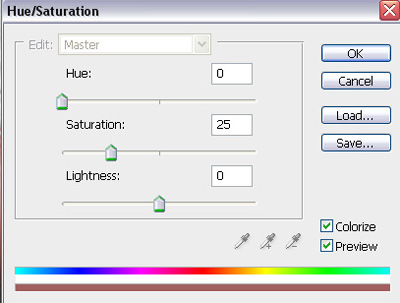
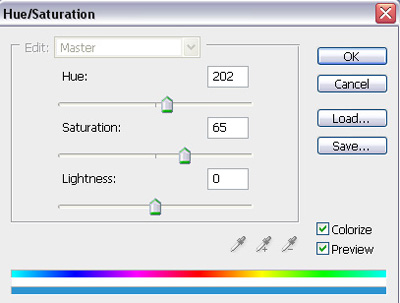
6. Now it's just time to colorize those 2 layers! So go to (image - adjustments - hue/saturation) and make sure you check the colorize box! Use the following 2 screenshots as a reference for the 2 layers! But you can always select other colors you like more!
7. This is what I ended up with! It looks strange but it's just a nice colorful swirl and can be used for signatures, headers, banners, ads, etc...