1. Create a new document, 500x500 pixels, transparent background, RGB Color.
2. Put FF0000 as the foreground color and fill the layer (alt + backspace)
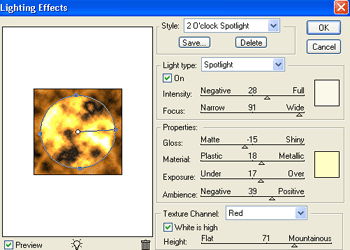
3. Filter -> Render -> Lighting Effects and use the settings below
4. Create new layer and hit D for defaults
5. Filter -> Render -> Clouds
6. Filter -> Render -> Different Clouds, then do it 6 times
7. Image -> Adjust -> Auto Levels
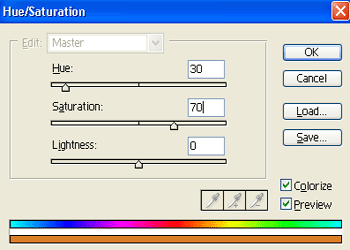
8. Ctrl + U: use the settings below:
9. Duplicate the layer
10. Filter -> Blur -> Radical Blur -> Amount: 100, Blur Method: Zoom, Quality: Best
11. On the original layer, do filter -> render -> lighting effects and use the settings:
12. On the topmost layer, set the blending mode to Lighten. (Double click layer to bring up blending options)
13. On the second layer, set the blending mode to Lighten.
