

Step 1. Open photo for this tutorial:
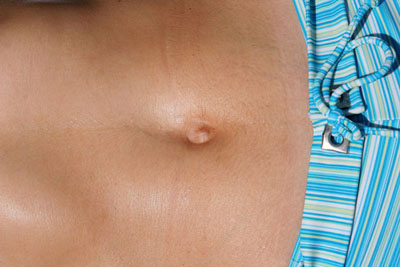
Step 2. Find on the Net or draw your own tatoo. Put that tatoo on a separate Layer and name it "heart" (I am using tatoo sketch that I find on the Net that has a hearth on it so I called that Layer "heart"). Position it over a place where you want to apply this effect.
Step 3. Next step is to make selection of our blood spatter and to colorize it in red. So, hold down Ctrl on keyboard and left click on the "heart" Layer. This will make selection of splatter. Now go and make new Layer (many different ways to create it: go to Layer - New - Layer or just press Ctrl + Shift + N) and name this new Layer "red".
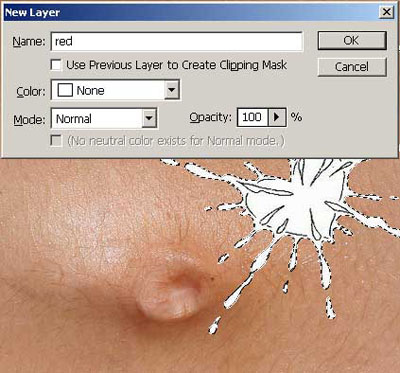
Click on this Layer, pick red color (I used darker red; #e60505), pick brush and paint over selection. Press Ctrl + D to deselect selection.
Step 4. Right click on "red" Layer and select Blending options.
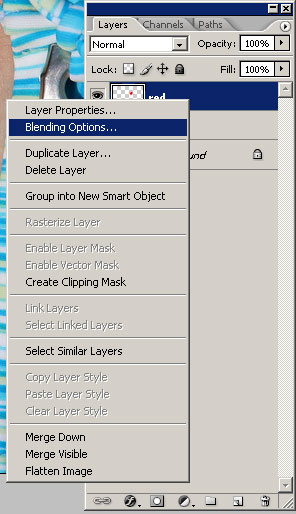
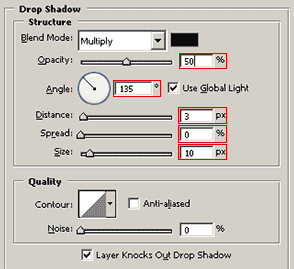
Now click on Drop Shadow and select these values
Now click on Inner Shadow and select these values
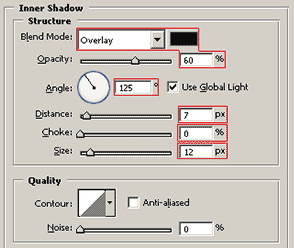
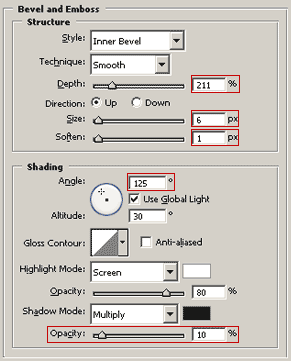
Now click on Bevel and Emboss and select these values
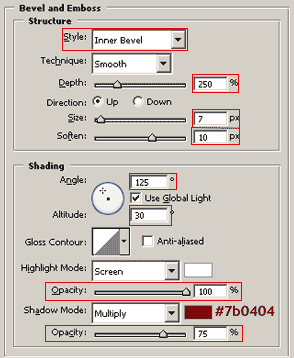
Step 5. We now have to change order of Layers, so that "heart" Layer would be on top. So go and drag it on top of Layer list.
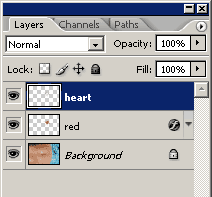
Notice: If you have tatoo sketch filled with white like I do go and select Blending mode for "heart" Layer to be multiply so that white color would be removed. Also lower the opacity of this Layer to 45% or lower depending of your sketch.
Step 6. Zoom in on the heart. Now we have to add a few effects on the blood drops that are over the heart. So, pick the Brush Tool (B), select a darker red (#9e0707) and create a new Layer and call it "blood drops". Drag this Layer below the "heart" Layer so that strokes would be visible. Now paint over those drops. You should get something like this when finished
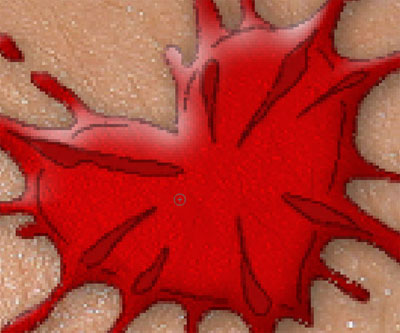
Step 7. Right click on "blood drops" Layer and select Blending options.
Click on Bevel and Emboss and set these values
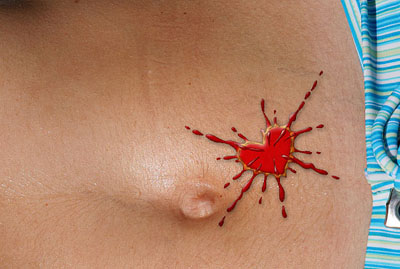
And final result
See you!
