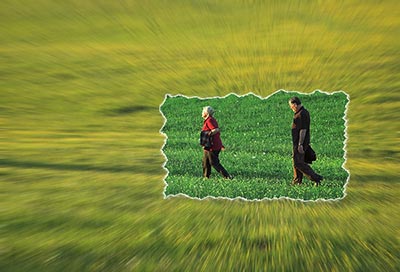
First open a picture on which you want to work. Then copy that Layer (Ctrl + J on keyboard) and name it. We'll name it back_copy.
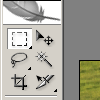
Then you pick rectangular marquee tool (M) and draw a rectangular over a place you want to frame.
After that once again press Ctrl + J (remember, this will copy selected area to another Layer) and call that Layer frame.
Now, click the back_copy Layer and go to the filter menu. Choose Filter - Blur - Radial Blur.
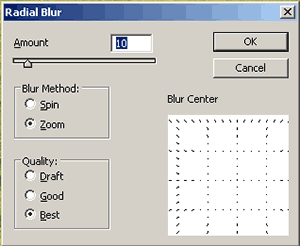
Then fix the center of window on the center of your frame. Pick value of 15 and best and then click OK (you can experiment with this values as you wish).
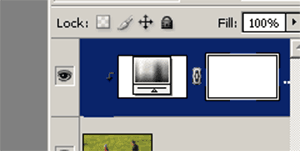
Now click frame Layer and from Layer adjustment option list choose Hue Saturation.
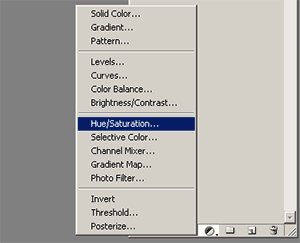
Experiment with these values and don't be worry if this is influencing whole area. We'll fix this in next step. When you are satisfied with the look of frame you than go to the Layer - Create clipping mask (Alt + Ctrl + G). Layers should look something like this
Next, select frame Layer, choose eraser tool (E), find brush that you think it's suitable and erase around edges of frame in small strokes.
And a final step is to go to the add a Layer style, select Stroke, choose white color, inner stroke and that's it.