


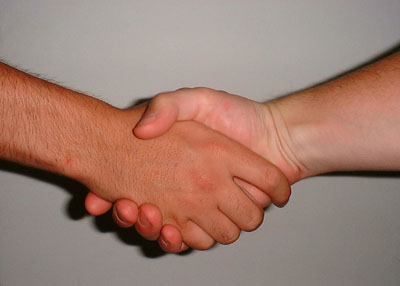
Step 1. Open our photo of two people handshaking.
Step 2. Click Create new adjustment layer, select Hue/Saturation and set these values.
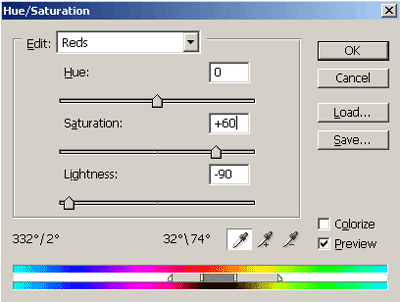
Also move color slider a little bit to the right so more yellow will be affected.
Step 3. Fill mask layer with black color (you can use Alt + Backspace), pick Brush tool, use white color and mask left hand in picture.
Step 4. Click Create new adjustment layer, select Brightness/Contrast and set these values.
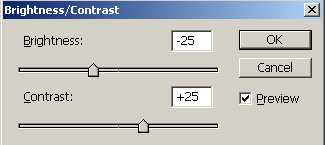
Set Blending mode for this layer to be Overlay. Now copy Mask from layer beneath (How? : press and hold ALT key then left click on that mask and drag it to the layer you want).
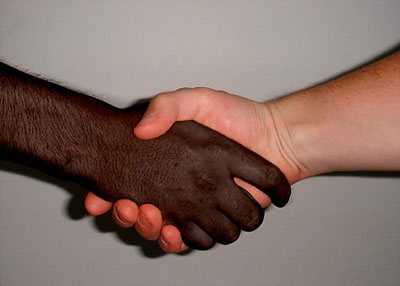
See you!
