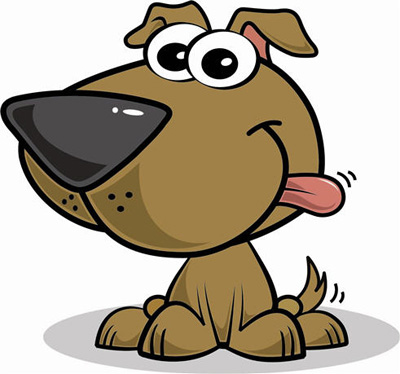
Create new document, random size
Check to Show Grid and Snap to Grid item on View menu

Create a line like this ( with Snap to Grid item, u can draw shape correctly )

Use Reshape Tool click to the center of the line

Pick on Direct Selection Tool and choose this anchor

Hit Up button on your keyboard

Dual click on Reflect icon ( Tool palette ), set as I did then Copy
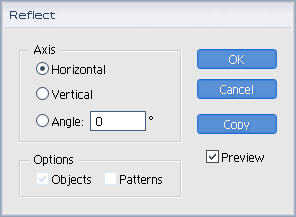
We have

Choose 2 left anchor, right-click and choose Average
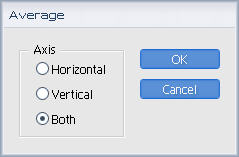
Choose 2 last anchor again >> Join
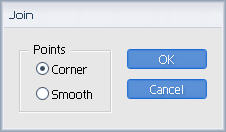
We have

Fill black color.

In Brush palette, click on small arrow at top right, then choose New Brush
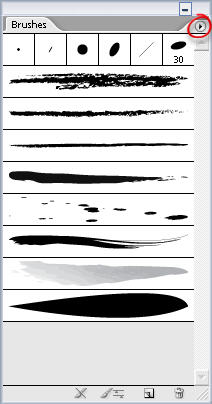
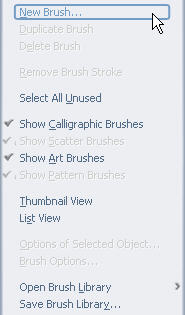
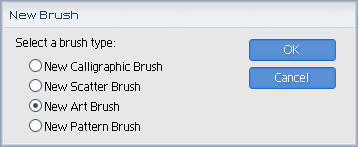
Pick on New Art Brush
Set parameter
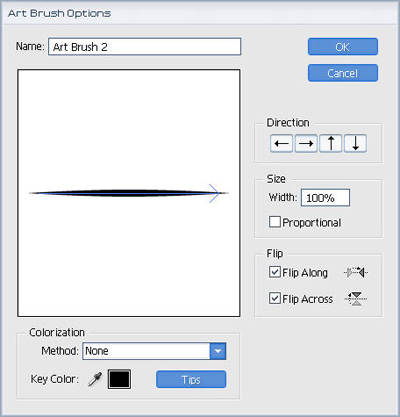
Done. We have new brush.
About create and using brush in Illustrator, it will be in another tut
Now, use Pen tool draw this path with 6 px stroke
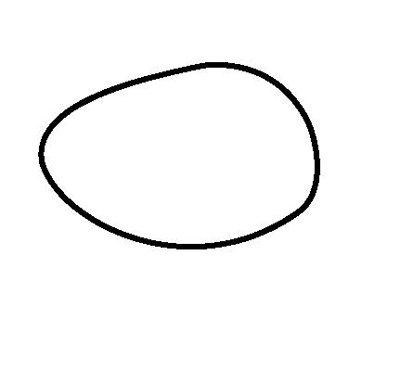
Continue with pen
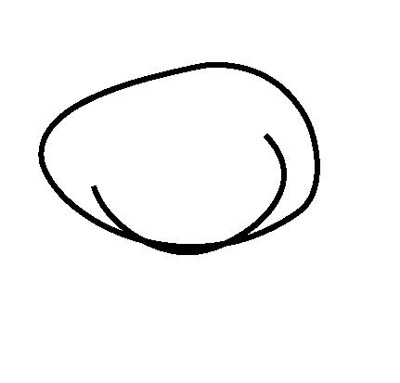
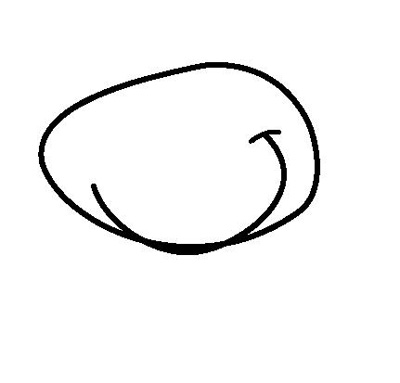
Draw two elliptical shape fill this brush for it
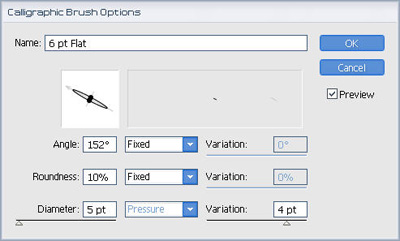
Draw some more elliptical shape for eyes

Coloring
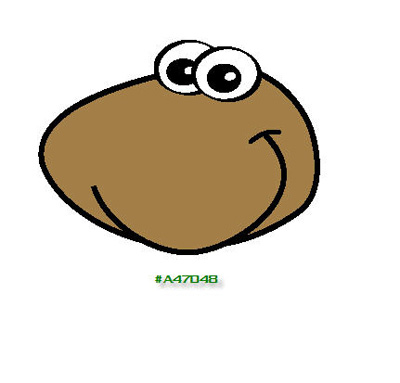
Draw a tongue
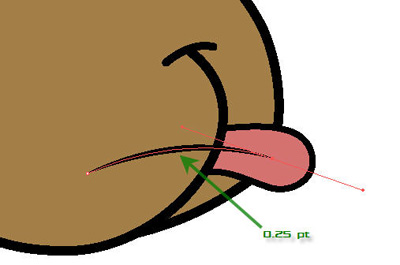
Continue with ears
Draw two shape like this
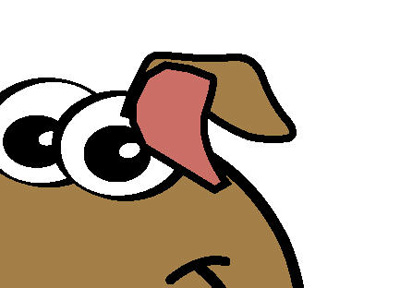
Arranged layer >> we have an ear
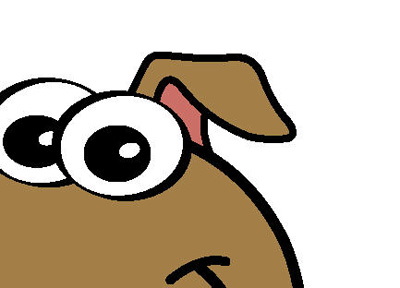
Do the same step for right ear
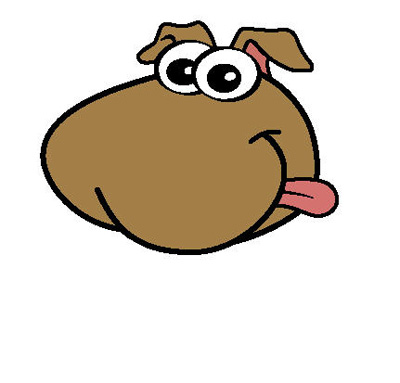
Draw big nose with dark color
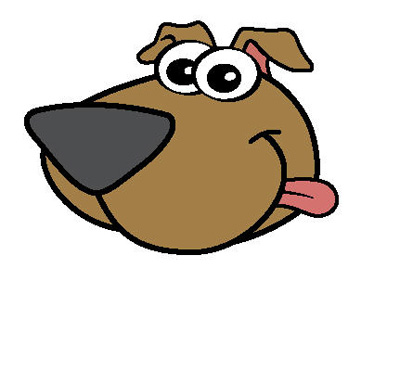
Draw 3 shape like this for the body
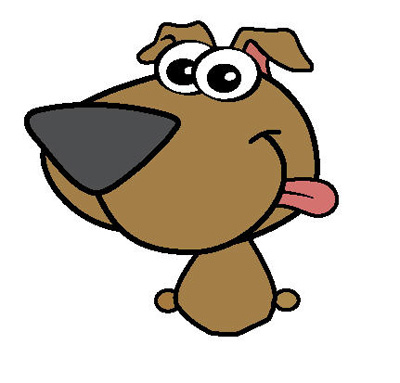
Leg
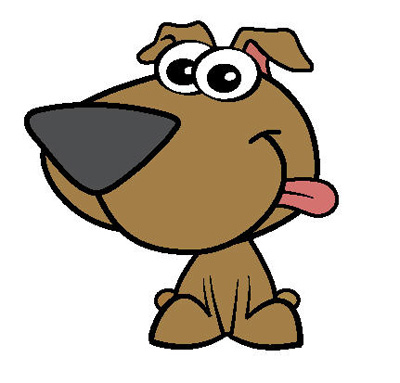
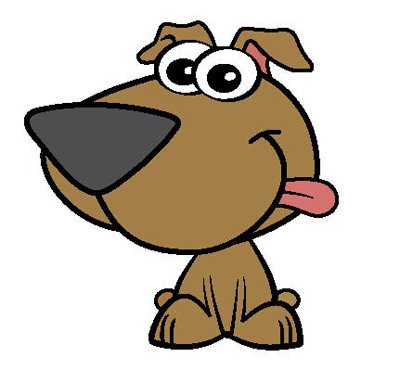
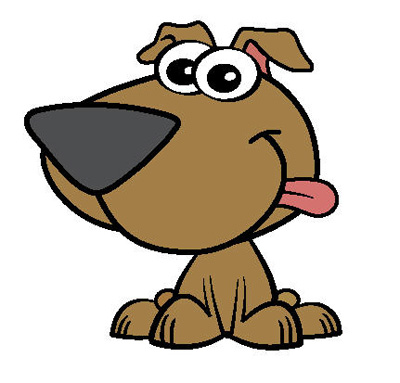
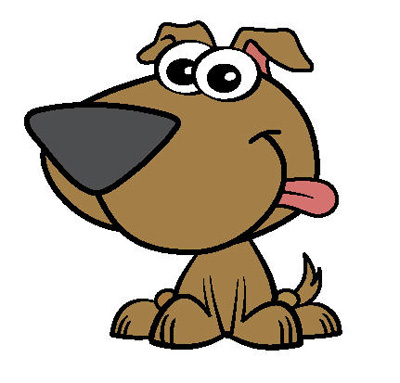
Shading steps
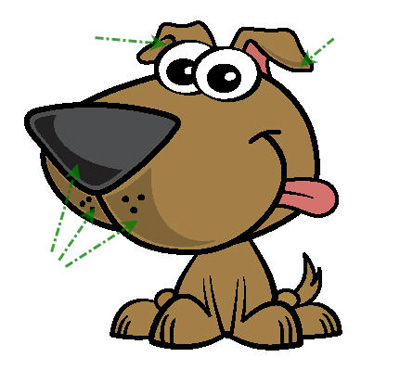
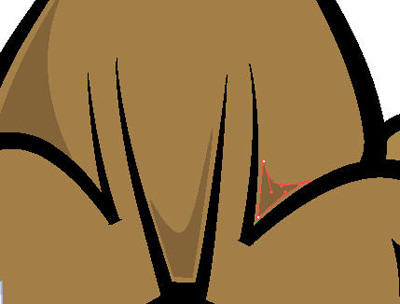
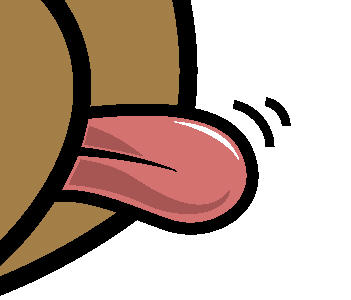
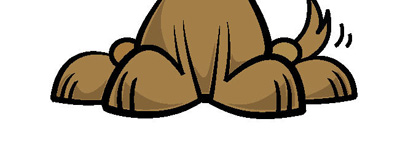
Draw a elliptical shape for shadows
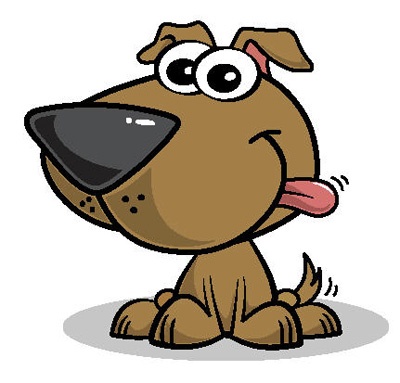
Exported to jpg >> lovely for avatar