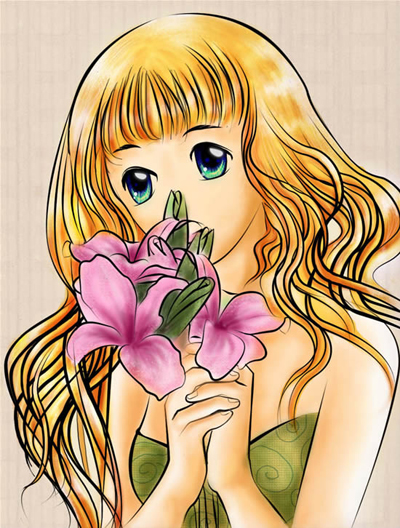
Last tutorial, I showed you how to use pen tool in Photoshop to draw a girl, and now I'm going to show you how to colour that picture.
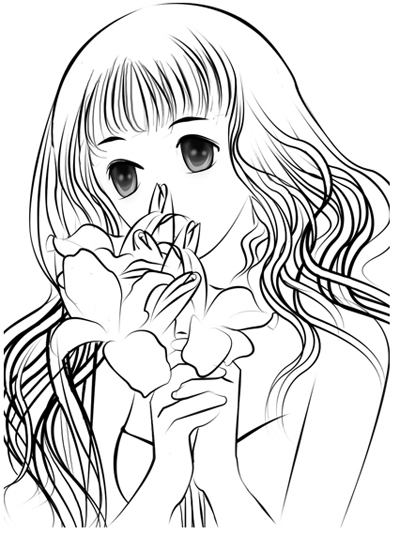
1. You put Layer sketch in the top and choose mode Multiply in layer box
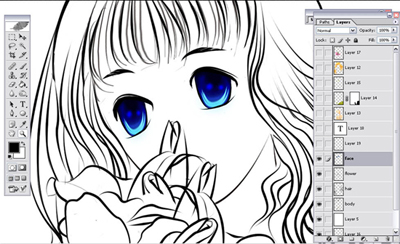
2. You use brush, choose the "color" in Mode box, opacity 50% .
You are painting eyes with blue color or whatever color you like deep blue
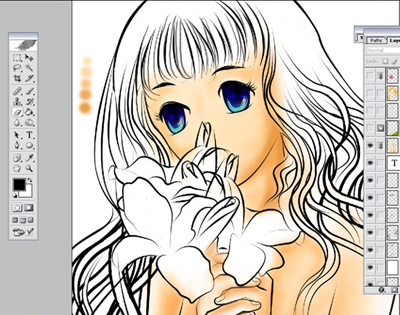
3. Painting the skin: create a new layer, put the layer behind the layer sketch. You choose "multiply" for this layer, click in color box and choose the color like color of skin #FFE4B8
#FFDCAD #FCC283 #EDA14F
Use the soft brush with opacity 60% .
You begin with the most pale color . #FFE4B8 . After that , you paint the shadow color with opacity less than 50%
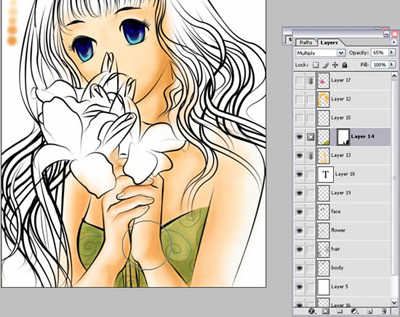
4. Shirt
Select all the shirt in this picture, and then, you click in fill --pattern and choose the pattern that you like , I choose a green pattern
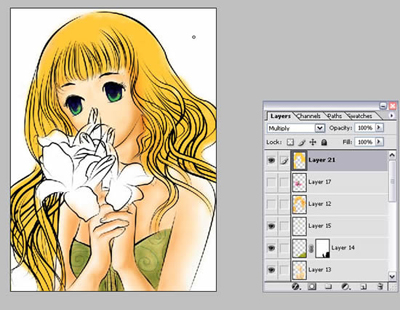
5. Painting hair. You still using soft brush and choose the color FFC835 , yellow color , or what color you like . But I think you should choose the light color to make the girl more beautiful . You painting all of the hair.
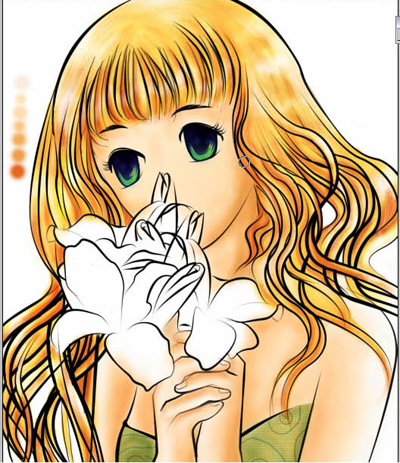
Choose soft brush , opacity : 30% . color : white , paint the light in the hair.
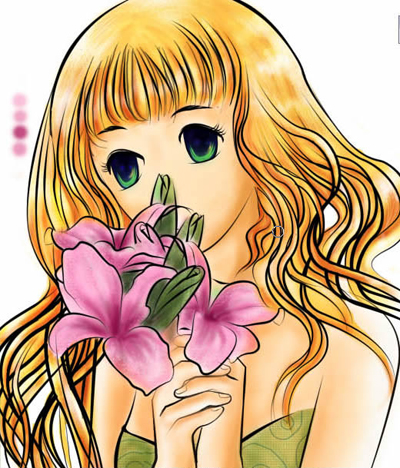
Painting flower : choose pink color and painting with soft brush, Normal and opacity 100 %. After that , you choose Overlay and paint the line in flowers with opacity 50%
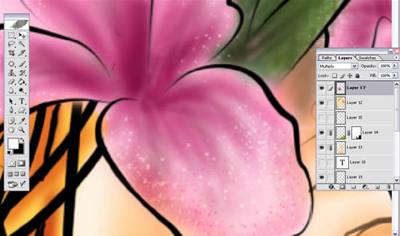
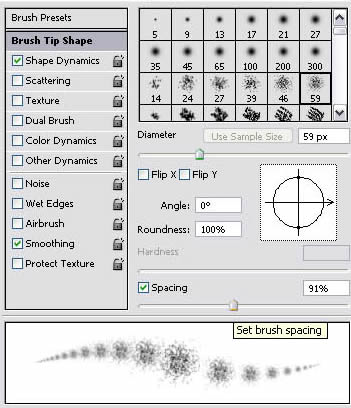
I choose this brush to paint all points in the flower.
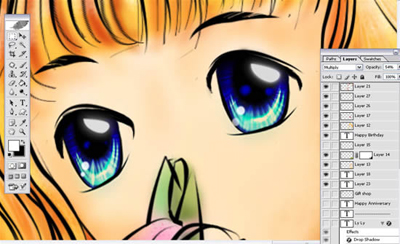
You use the pen tool to draw the light in her eyes. After that, you use white colour to fill it. Choose hard brush and paint the small light with blue and white colour.
This is my final result: