Create a new file with width and height as you like but the background color will be black and write the text that you like to make an effect

Use Magic Wand Tool to pick the area around the text, go to Select > Modify> Expand and use the information is 3 (With the text has no space between them, use Contract to reduce the selection area)

Create 1 new layer above the text layer and Fill the selection area with whatever color that you like. Use Blending Option of new layer, select setting as the picture below:
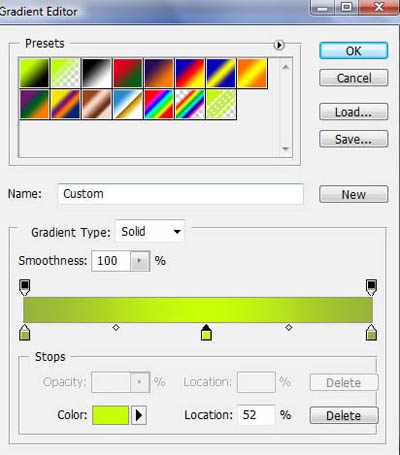
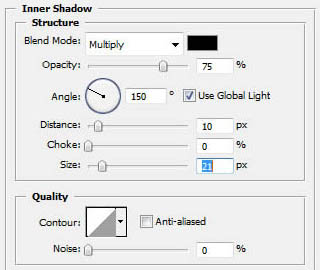
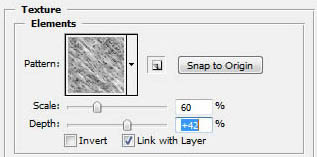
Select Bevel and Emboss , set the option of texture:
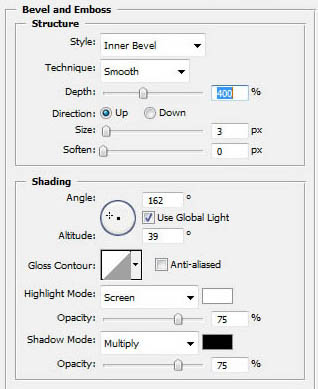
Back to layer text, put the blending option:

Cut off some part to make the text looks more collapsed.