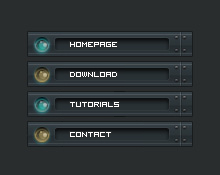
1. Create a new document, create a new layer, user Rectangular Marquee Tool to make a rectangle like this:
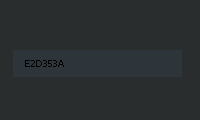
+ Go to Blending Options
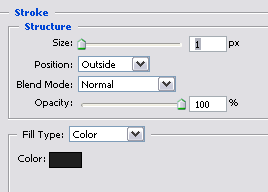
2. Create a new layer, draw 2 white lines, adjust Opacity = 10%
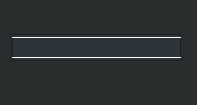
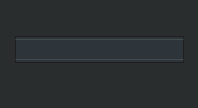
3. Create new layer, draw a black rectangle like this:
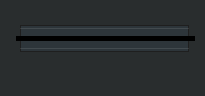
+ Go to Filter > Blur > Gaussian Blur
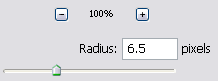
+ Erase the remaining parts outside the rectangle:
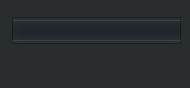
4. Create a new layer, draw 2 insetlines like this:
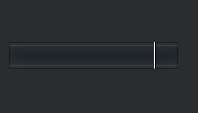
+ Decrease Opacity = 20 (with white line), = 30 (with black line) :
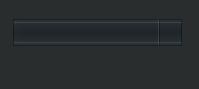
5. Create new layer, use Pencil Tool size = 1px to make 4 dots like this :
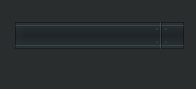
+ Go to Blending Options
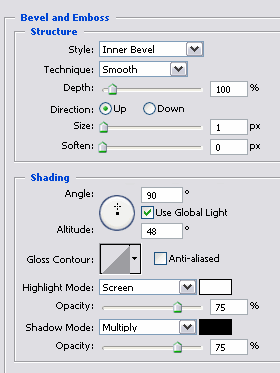
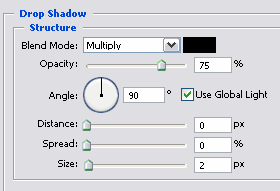
+ We will get the result:
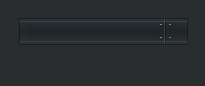
6. Create new layer, use Elip to make a white circle:
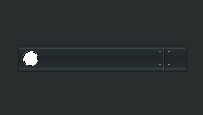
+ Go to Blending Options :
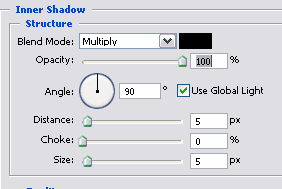
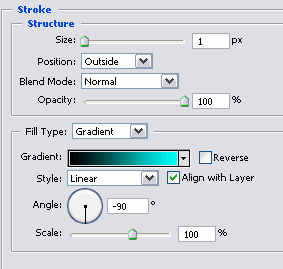
7. Create new layer, create a small circle in white circle:
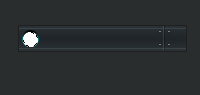
+ Go to Blending Options :
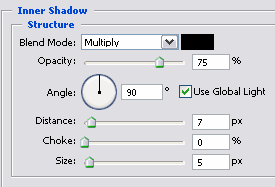
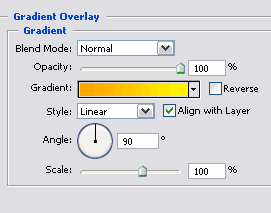
+ We will get the result :
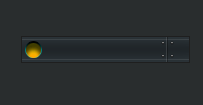
+ Polishing it:
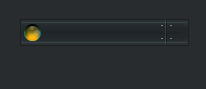
8. Create new layer, use Rounded Rectangle Tool to make a rectangle like this:
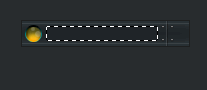
+ Go to Blending Options:
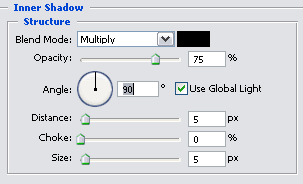
+ We will get the result :
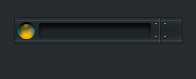
9. Merge all layers then make button more shiny, this is my final result: