

Step 1
Take the Rounded rectangle tool and create the "shape" like it is shown on the picture below.

Step 2
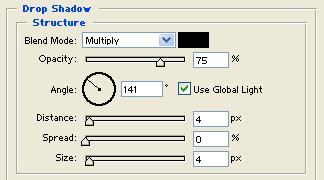
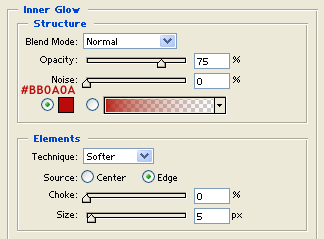
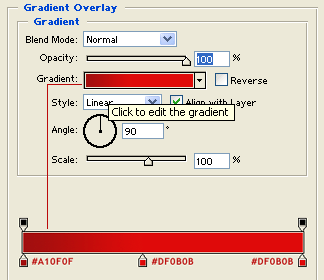
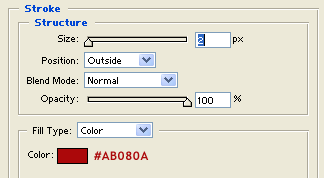
On the shape we will apply the following styles.
Drop shadow
Inner glow
Gradient overlay
Stroke
Our button now looks like this:

Step 3
Hold down Ctrl key and click on button layer to select it. Then, take the Rectangular marquee tool and set the options like the picture below shows you.

Step 4
While the button selection is still active, take the Rectangular marquee tool, and move it over the part of selection, to get active only one part of left selection. See the picture below.

Step 5
Create a new layer and fill the selection with #E1CA57.

Step 6
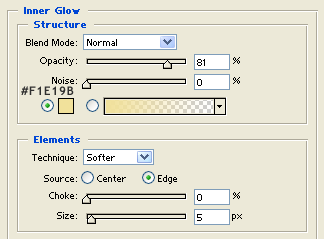
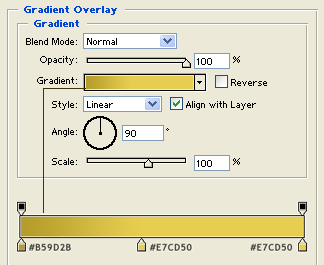
On the new made layer. we will apply the following styles.
Inner glow
Gradient overlay
Step 7
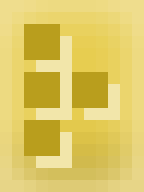
Using the pixel art, we will create the icon. Create a new layer, zoom it on 1600%, take the Pencil Tool and create the icon. See the picture below.
Our button now looks like this:

Step 8
For text button I have used Trebuchet MS bold font, size 14pt, white color. I'm also add a little dark stroke of 1 px on text. See the picture below.

We're done!
