


Step 1
Create a new document and set the dimensions of content which you like. (mine dimensions are 300x231px).
For background color set white color.
Step 2
Take the Rounded Rectangle Tool, under Foreground color set #9AB82E, and create the main shape for content box.
Using the Rectangle Tool, create the shape for content. See the picture below.


Step 3
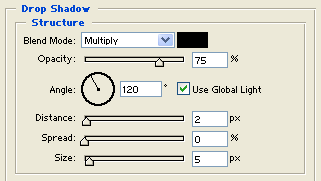
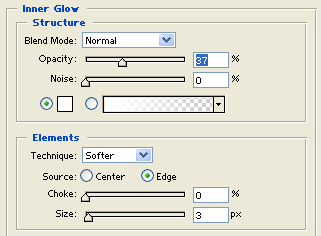
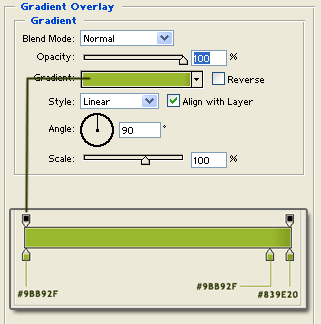
On a new made shape, we will apply the following styles:
Drop Shadow
Inner Glow
Gradient overlay
Stroke
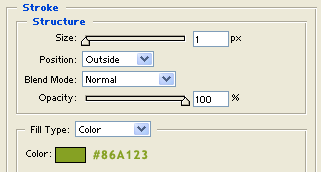
Step 4
Now, we will create another shape inside the existing shape. To do that, you must to duplicate the existing shape and after that using the Free Transform Tool, to decrease it. So, click right click on the shape layer and choose "Duplicate Layer"...
Step 5
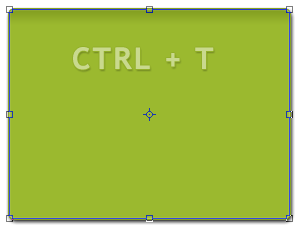
After that, press Ctrl+T (Free Transform Tool), and under width and height set 97% . See the picture below.

Step 6
Then, decrease a little the top part like it is shown on the picture below.
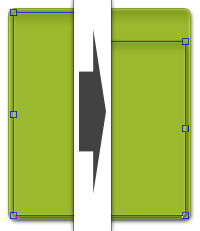
Now, our content box looks like this:

Step 7
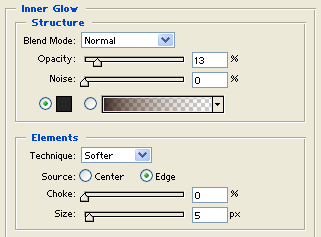
Remove the current drop shadow, inner glow, gradient and stroke for our duplicate shape, and apply on it the following styles:
Inner glow
Gradient overlay
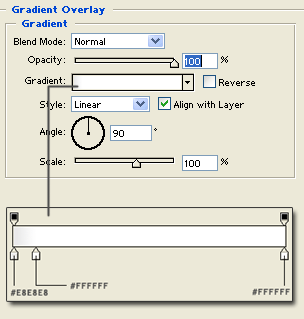
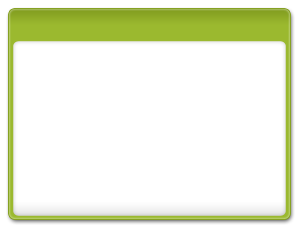
Our content box now looks like this:
Step 8
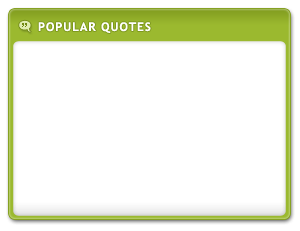
Add the heading on the top of content and some icon if you want :)
I have used Ms Trebucht Bold font, 12px, Strong.
I have also add a stroke 1px size, this color #7E991D.
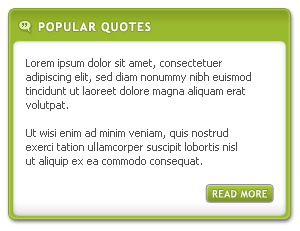
We're done!
Bye!
