

Step 1
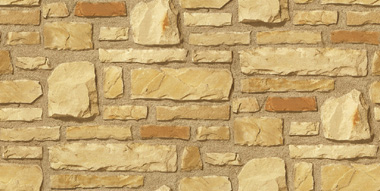
Open my picture in Photoshop.
Step 2
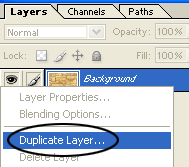
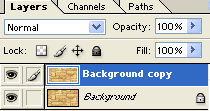
Press right click on background layer and choose duplicate layer, and after that press ok. See the picture below.
Step 3
Take the Horizontal Type Tool (T), choose some font large dimension and type something. ( I have used Berlin Sans FB Demi font).

Step 4
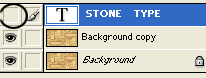
Hide your text layer.
Step 5
Hold down Ctrl key and click on text layer to select it.
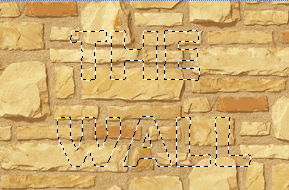
Step 6
In layers palette, select your copy of background layer.
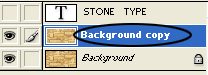
After that press Shift+Ctrl+I on the keyboard, and then Backspace key.
Step 7
Press Ctrl+D on the keyboard to deselect.
Step 8
While your background copy layer is still selected, click on Add a layer style icon and choose Inner Shadow. See the picture below.
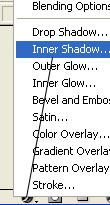
Step 9
After that set the options from the picture below.
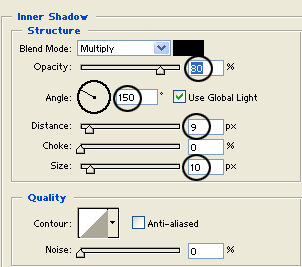
Step 10
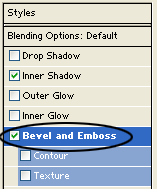
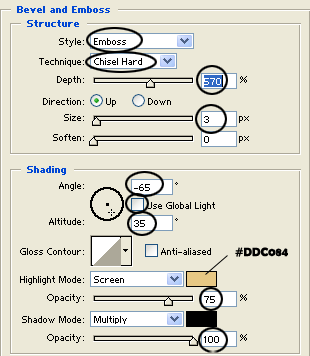
Then, select Bevel and Emboss Style, and set the options from the picture below.
Step 11
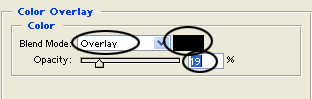
After that in Layer Style choose Color Overlay and set the options from the picture below.
Then, press ok.
Step 12
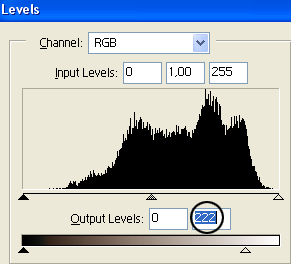
Press Ctrl+L on the Keyboard to open the Levels window and then, set the options from the picture below and press ok.
Finally, our work looks like this:

Bye!
