The workflow is very simple:
- Duplicate the background
- Adjust shadows/highlights
- Duplicate again, set blending mode to multiply
- Apply Gaussian blur
Now let's have a detailed look at each step.
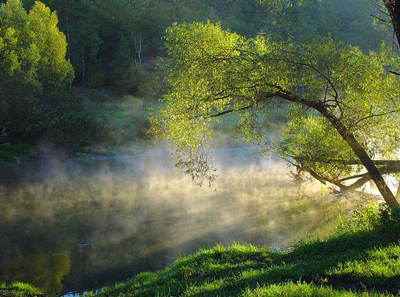
Duplicate the background.
Why duplicate? Duplicating a 'Background' layer and working with the copy instead of the original is always a good idea:
- if something goes wrong, you may easily restore the original look
- many Photoshop techniques require using multiple copies of the 'background' - you will have to copy 'Background' layer again and again
- it's easy to compare the original and final image if you have the background unchanged
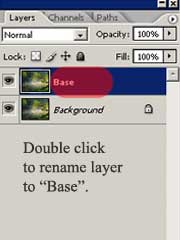
Press Ctrl-J to duplicate the 'Background' layer. The default name of the new layer will be 'Layer 1′. Double click 'Layer 1′ in the layer palette and rename it to 'Base'.
Adjust shadows/highlights.
Our 'glow' technique will add contrast to the image. If we do not adjust the amount of shadows to lighten the image the final result may be too dark.
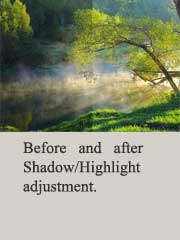
Select Image - Adjustments - Shadow/Highlight and set Shadows amount to 40-60% (the 'Base' layer should be selected).
Make duplicate of the 'Base' layer.
Press CTRL-J to duplicate the 'Base' layer. Rename the new layer to 'Gaussian Blur'.
Set blending mode of the 'Gaussian blur' layer to 'Multiply'.
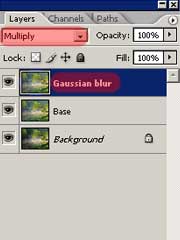
Apply 'Gaussian blur' filter to the 'Gaussian blur' layer :).
Select Filter - Blur - Gaussian Blur. Choose the radius that suits your image best. Usually it is 2-3 for small images and 10-15 for large ones.
The result... nice and soft 'dreamy' glow.
The result depends on the amount of the blur applied, on the Shadow/Highlight adjustment and may vary considerably.
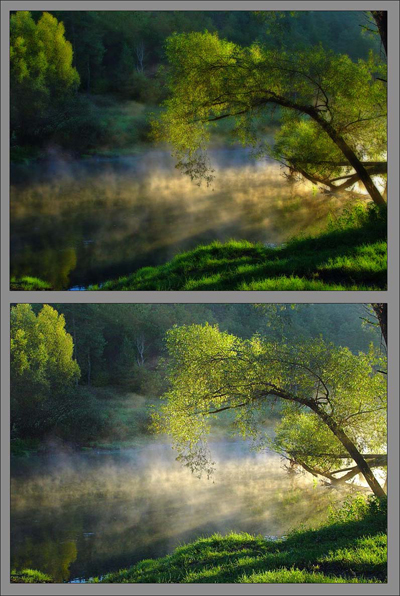
Further adjustments.
You may try to apply Image - Adjustments - Shadow/Highlight to the 'Gaussian blur' layer to lighten (or darken) your image a bit. You may also make a copy of the 'Gaussian blur' layer to strengthen the effect. Experiment with layer opacity. Try 'Darken' blending mode instead of 'Multiply'.
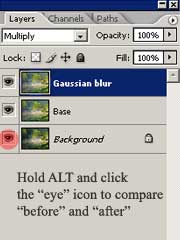
How to compare the original and the final image easily.
To compare the result to the original photo hold the ALT key and click an 'eye' icon next to the 'Background' layer. This will toggle visibility of all layers except the 'Background'.