Step 1. Start with a 300x300 new document with a colored background. I just used Filter>render>clouds .

Write your text using a medium font, with a gray color . I simply wrote Design

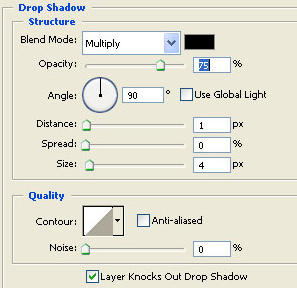
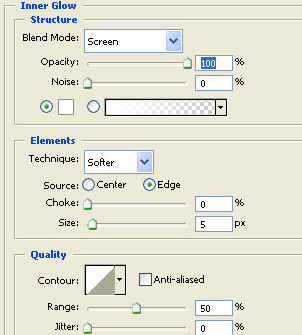
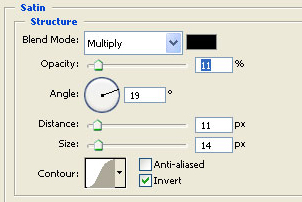
Step 2. Let's add the following layer styles to the text layer:
Drop Shadow:
Inner Glow:
Satin:
This is the result:

Step 3. In this step we are going to add some shine to the text. So press and hold Ctrl and click on the layer to select the content of it.
Now using the rectangle marquee tool with the settings below make the selection half :
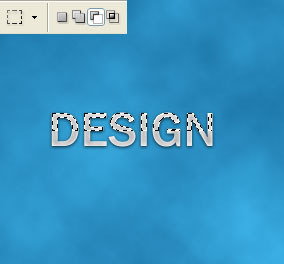
Now create a new layer and with the selection still on fill it white and lower the opacity to around 30% or less.


Step 4. Let's add some fairy dust. So make a new layer and grab a rounded brush and using different sizes and colors make something like below:

Add a simple white outer glow and you are finished:

 This post was written by owner of