Step 1. Let's get started. Make a new document sized 300x300 with a grey background. Now make a new layer and grab the rounded rectangle marquee tool and make a shape like below and fill it blue:

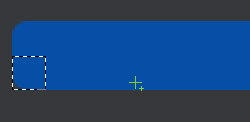
Using the zoom tool and the polygonal marquee tool we are going to make 2 square corners. So with a selection like below and a blue brush on the same layer fill the selection:


Step 2. Let's add the following layer styles:
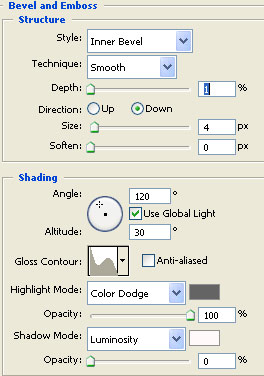
Bevel and Emboss:
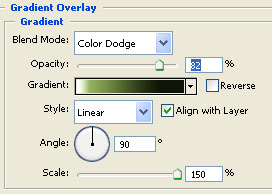
Gradient overlay:
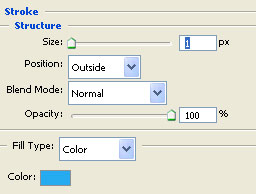
Stroke:
Now let's make a new layer and grab a light grey soft brush size 30 pixels and make a draw like below:
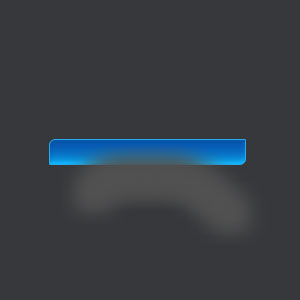
Set blending mode to Color Dodge :
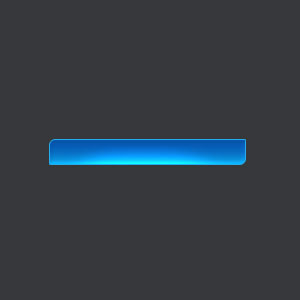
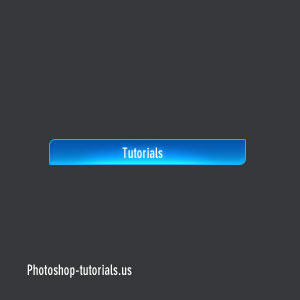
You are pretty done. I added my text with a white outer glow :
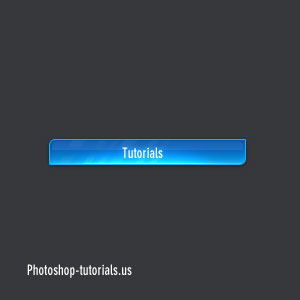
To add a glass effect make a new layer, select half of the button , the top half and fill it white. Lower opacity to around 30% and you are done. This is my final result:
 This post was written by owner of